
Want to add something to every slide? Discover how PowerPoint slide masters make it simple.
Slide Master Menu
To reach the slide master, go to the View menu. Then, click on Slide Master.

The Slide Master menu opens, and you can configure your masks as desired.
To return to edit mode, click Close Master View.

Master layout
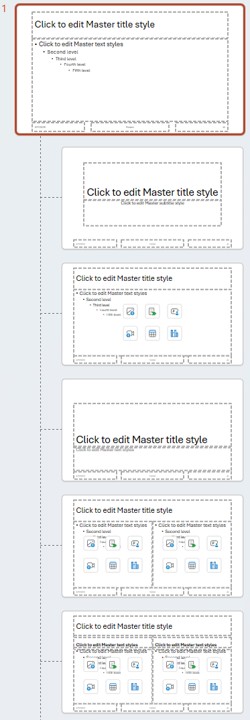
On the left side, you will find all the types of slides configured for your presentation.
Presentation Theme
To add an element (photo, logo, date, or other) to all slides, be sure to click on the very first slide (at the top). Make your change.
This slide defines the theme of your presentation.
Configuring Specific Slides
Below the Theme slide, you will find other slides that you can customize the layout of.
Example: title slides, sections, etc.
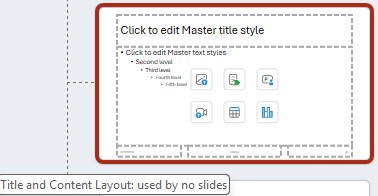
Hovering over a slide will reveal its name.
You can add other specific slides that you have fully configured.
Using the Slide Master
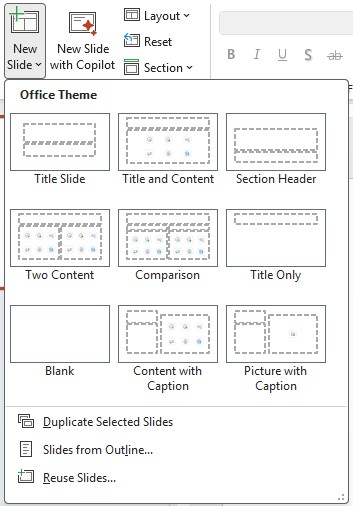
After you close the Master View, on the Home menu, when you click the New Slide menu, you will find all the slide types that you have configured in the master.
Insert the one of your choice and you will see the layout put into your presentation.