

Excel speaks all languages. With Translate, your data travels without leaving your spreadsheet.
With the TRANSLATE function, it is now possible to translate text directly in Excel cells.
Let‘s explore together how to translate this french table very quickly… and why not in several languages!
💡Good to know: This feature requires an internet connection, as it relies on Microsoft‘s cloud services.
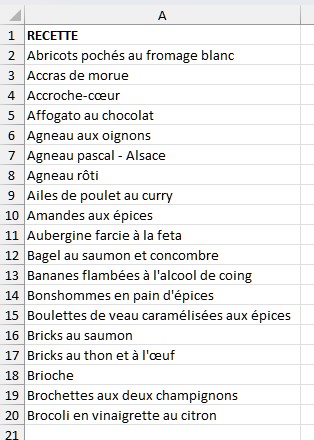
TRANSLATE function
The TRANSLATE function works like this:
=TRANSLATE(text, [source_language], [target_language])
- Text: The text or cell that contains the text you want to translate
- Source_language: Language of the text
- Target_language: Language into which the text is to be translated
The languages to be translated and translated are expressed in code.
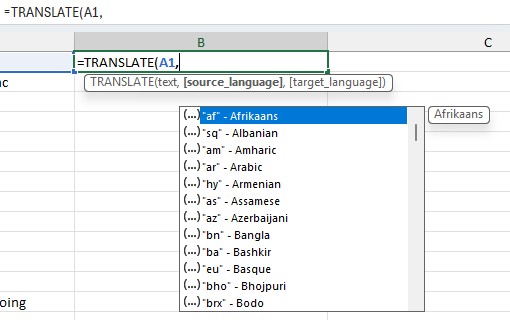
When you type the function in a cell, when entering the arguments Source_language and Target_language, a drop-down list is displayed offering the different language codes.
It is possible to search by navigating with the list elevator or start typing the code: the list is filtered.
Be careful, enter the “before and after” the language code.
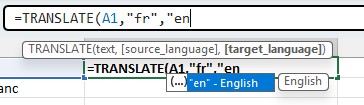
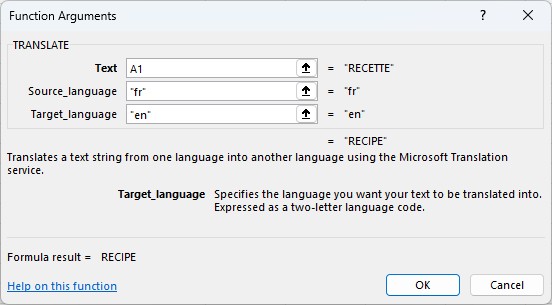
Result of the Translate function
After entering the function in a cell, dragging the formula over the column translates the entire column.
At the beginning, Excel will work #BUSY! then will display the translated result.
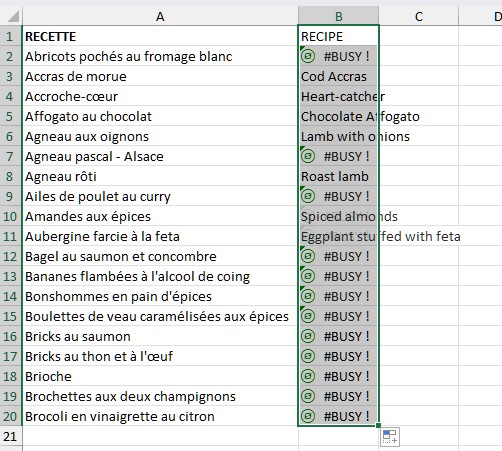
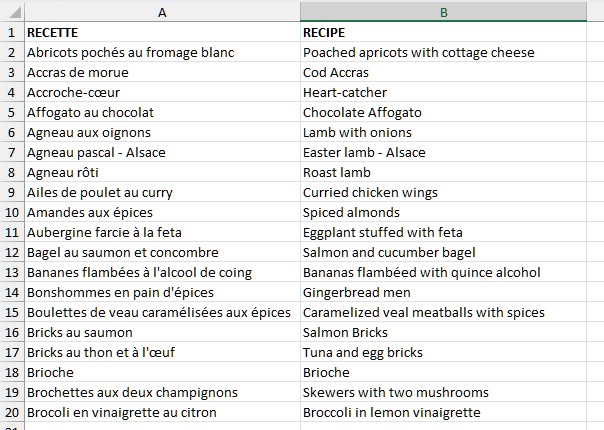
It is possible to use this function to translate a column into different languages. Did you recognize them?
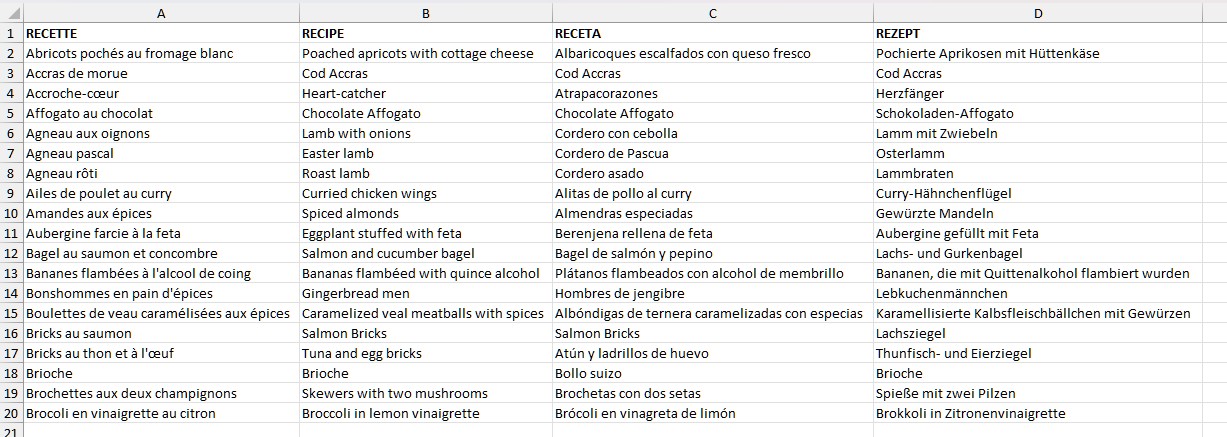
Your recipe boards, product sheets, or multilingual reports can now display multiple languages without much effort.
Translating becomes child‘s play, even in your most complex paintings.
And that simplicity doesn‘t stop at Excel: across all Microsoft 365 tools, translation adapts to your needs, whether it‘s a single word or an entire document. Word, Outlook, PowerPoint… Each application offers partial or global translation options, to facilitate your multilingual exchanges.
👉 Learn more Office: Office: Translate a document