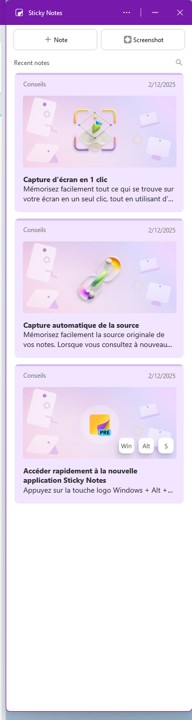

Do you want to stick post–it notes on your screen, but are too lazy to go to the store to buy some?
Sometimes you need to write down an idea, information or whatever, to keep it under wraps.
OneNote‘s Sticky Notes app lets you jot down an idea and keep it on the screen. This app is integrated with OneNote but can work independently.
Where to find Sticky Notes?
In OneNote
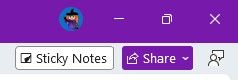
At the top right of the OneNote window, you‘ll see the Sticky Notes button (depending on your version of OneNote).
From the list of applications
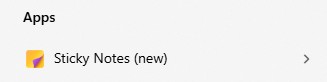
In the Windows apps on your computer, look for Sticky Notes.
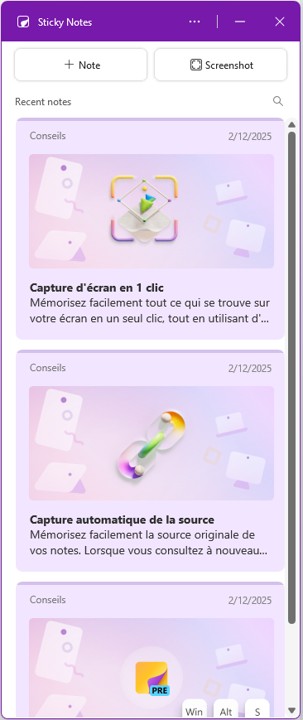
A panel opens on the right side of your screen.
You can add notes, screenshots… everything that comes to mind.
Using Sticky Notes
The + Note button allows you to add a new idea in text format.
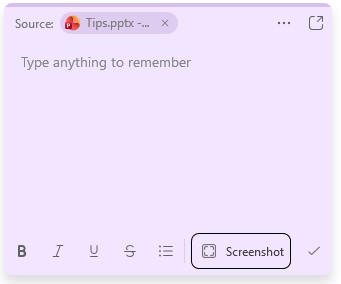
The Screenshot button allows you to take a screenshot and keep it under your belt.
💡When you create a note or screenshot, the source is saved.

Enhance a note
In all your notes, it is possible to format the text and add a screenshot.
Similarly, when you take a screenshot, it is possible to add notations.
Keep sticky notes always on display
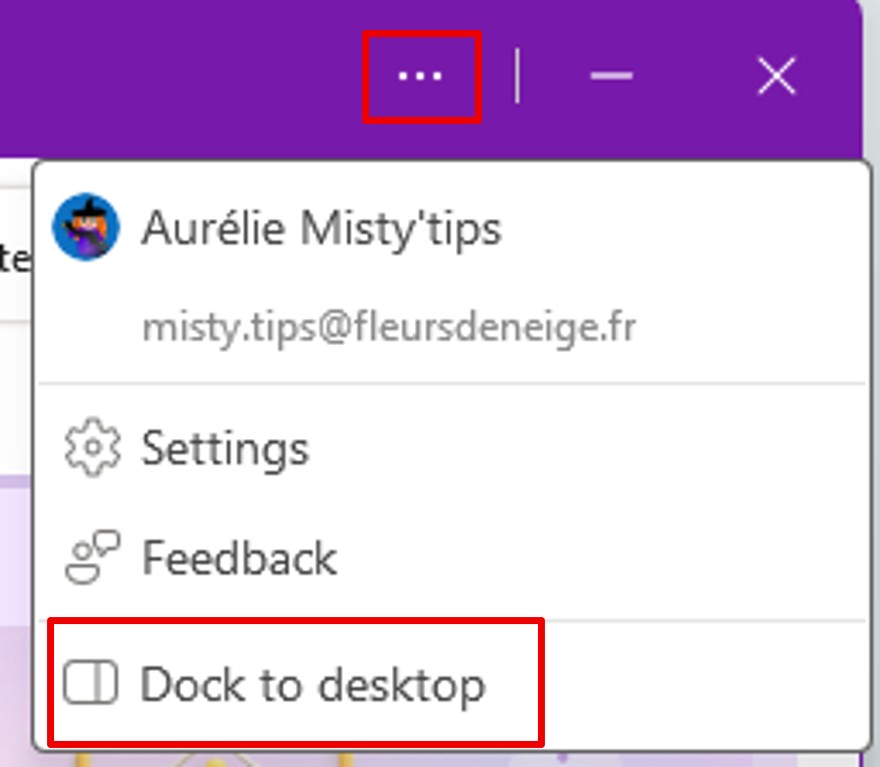
Click on the 3 dots at the top right of the Sticky Notes window. In the menu that appears, click Dock to Desktop.
The window appears next to your other windows.
You can continue to work, while keeping your reminders in front of you.
A simple tool, but one that can really lighten your daily life.