
Sick of losing track in your slides? Use PowerPoint sections to keep your presentation organized and looking professional.
Sections in PowerPoint are more than just a storage tool—they‘re the key to saving valuable time. By breaking down your presentation into clear parts, you structure your speech naturally, work faster on your slides, and never waste time looking for a specific slide again.
Add a section
To add one or more sections to your presentation, there are several ways to do this:
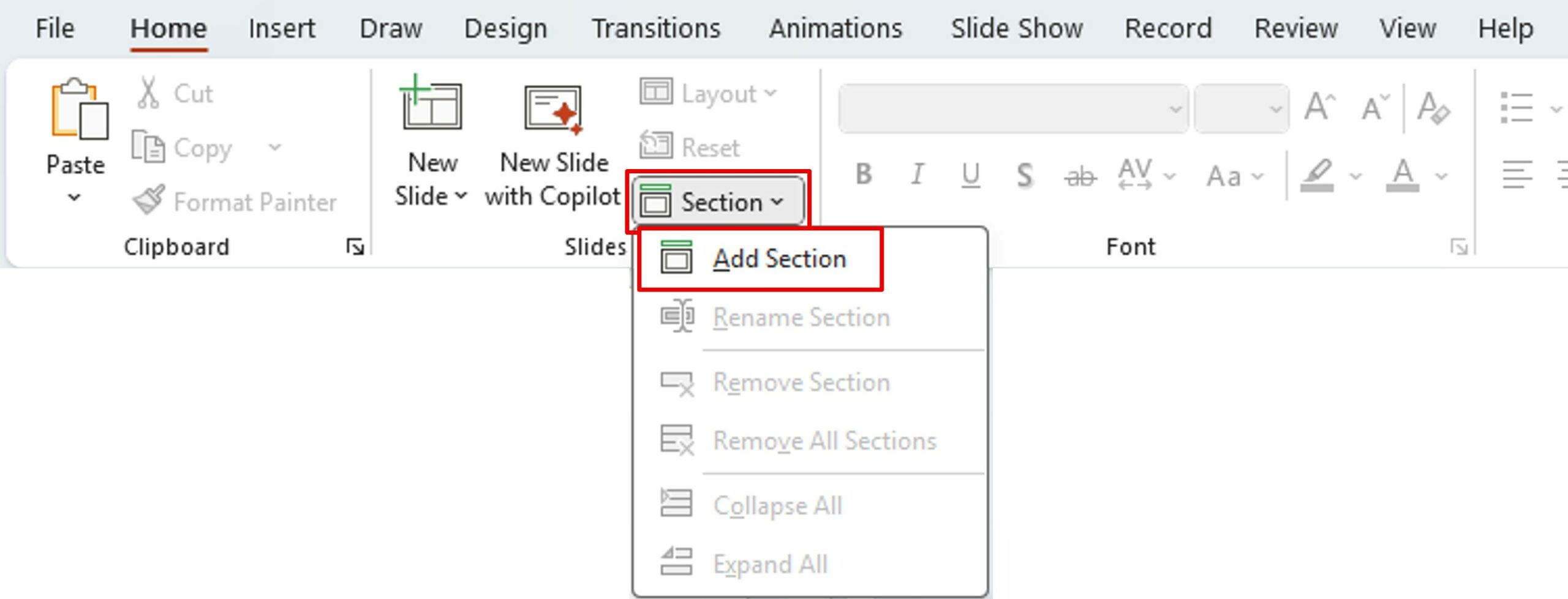
1/ From the ribbon
On the Home menu, click Section, and then click Add Section.
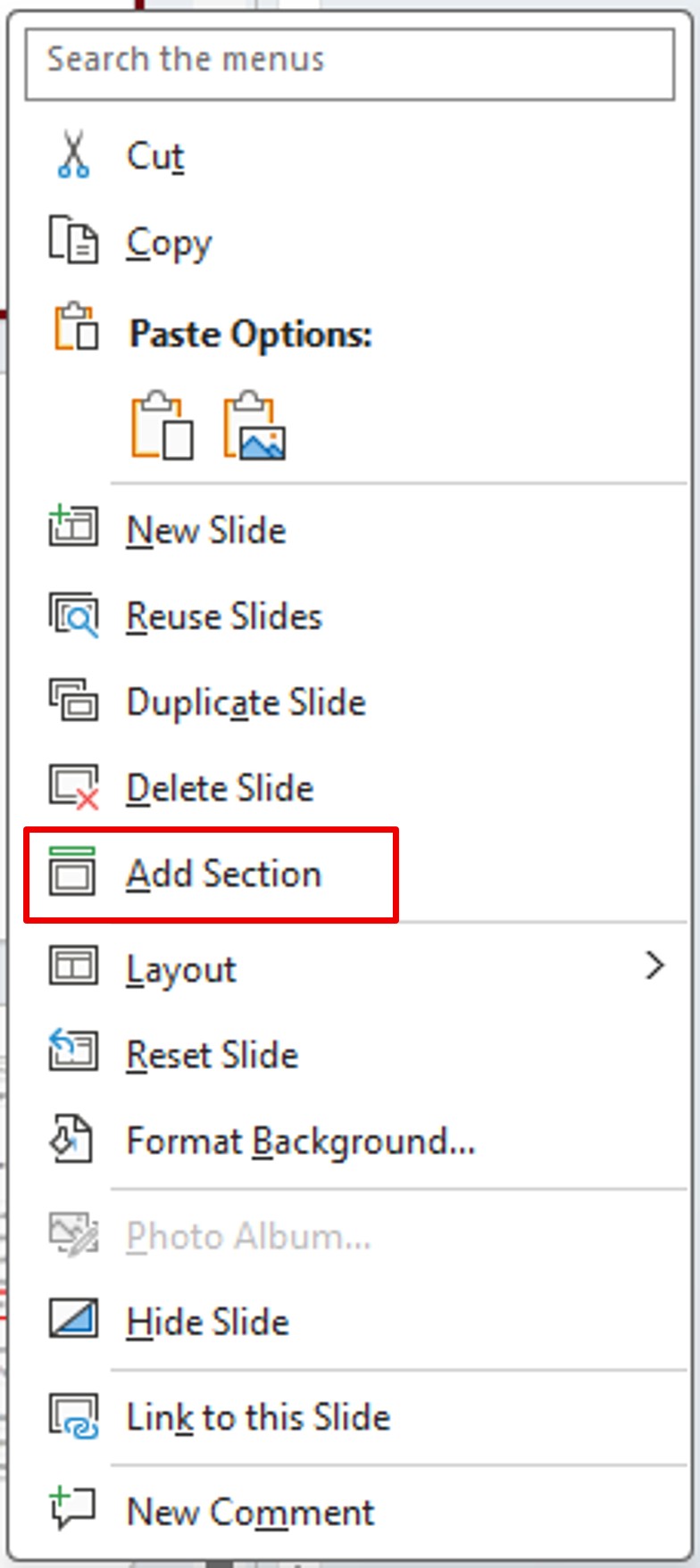
2/ Right–click on a slide
Right–click on a slide and select Add Section from the context menu.
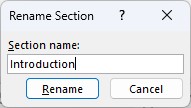
Naming the sections
When you add a new section, you will be asked to name it.
You will have the option to rename it later if needed.
In the left pane, you can see the name of your section appear above the first slide of the section.
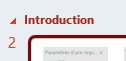
Each section creates a slide group. This allows you to find your way around visually.
💡Tip: If you double–click the section name, you can collapse (hide all slides) or expand (show all slides) the section.
Edit and organize sections
Once the first section is created, you can edit it and create new sections.
You can refine the sections and rearrange them as needed. There are several options available to you.
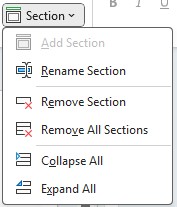
Ribbon Menu
Context menu (right–click)
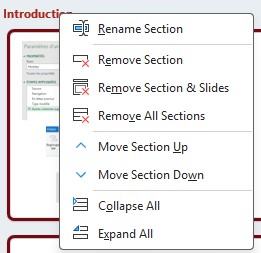
Whether from the ribbon menu or the context menu, you can:
- Rename the section,
- Remove section
- Remove all sections
- Collapse all: Only section names will be displayed and slides will be hidden in the left panel
- Expand All: Section names and slides are displayed in the left panel.
The context menu offers other possibilities:
- Delete the section and its content
- Move section up or down: To reorder the presentation. The whole section moves at once (including slides).
Point of attention: If you delete a section, you can choose to keep the slides or delete everything.
💡Tip: You can rearrange your sections by dragging and dropping into the left panel.
Pros of the sections
The sections allow:
- Divide a presentation into clear chapters
- To find your way around more easily (in the left panel, in particular by expanding or reducing a section or the whole)
- Quickly organize the presentation
- To work together: a division by section
- Structure and prepare your speech
In short, the sections transform your PowerPoint into a fluid, clear and flexible workspace.
💡Tip: To reorder your sections even faster, use Slide Sorter mode.
To go further: Did you know that your sections can become an interactive menu? See the dedicated article: Add a zoom effect.