

In Power Query, we‘ve all let unnecessary columns through. With “Choose columns“, lighten your model as soon as you import.
With Choose Columns, you can keep only what matters and optimize your templates from the import stage. A small, simple gesture, but one that makes all the difference in performance and readability.
Choose columns
Once you‘ve imported your source, on the Home tab, click Choose Columns.

Select only the columns that will be used in your template.
You can always go back to this step to add more columns.
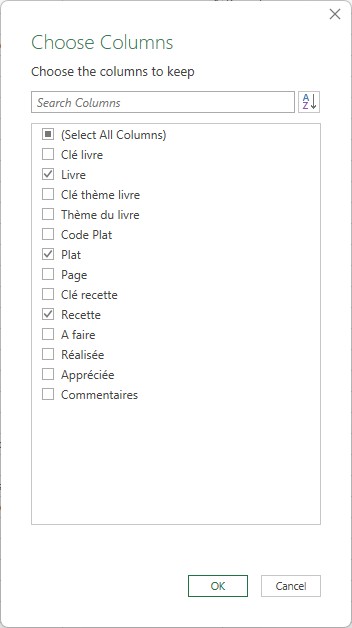
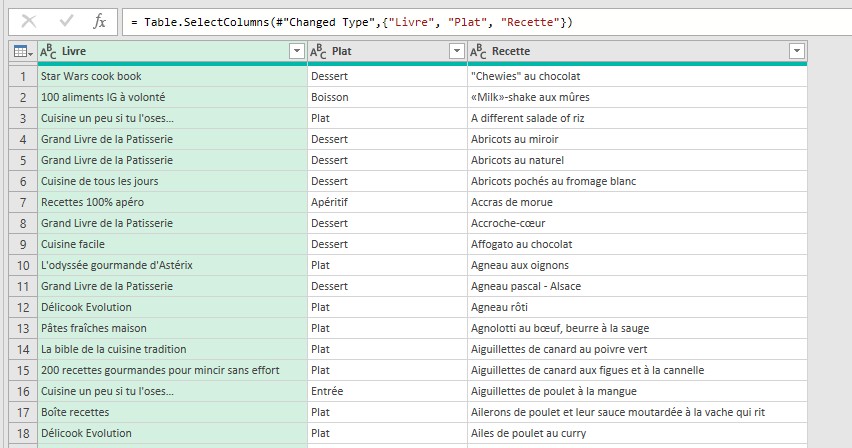
This means that only the selected columns are loaded.
If your source is going to change (additional, minus, or renamed columns), as long as the changes don‘t affect the chosen columns, they won‘t impact your model.
Delete steps on unretained columns
When importing data, Power Query sometimes adds steps automatically: Promoted Headers and Changed Type.
The Changed Type step can be problematic if the source is changed. In addition, this step can use many resources.
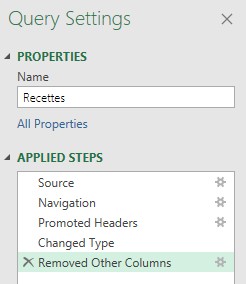
So, to get around this, we‘ll drag the Removed Other Columns step before the Changed Type step.
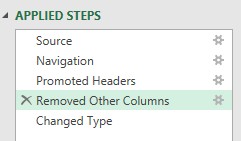
If we go to the Modified Type step, it comes up in error because columns are not found.

To resolve this error, let‘s remove the Changed Type step.
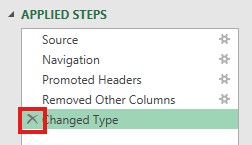
Then on the Transform menu, click Detect Data Type. This will change the type on the selected columns and not all the columns in the source.

This makes your model lighter. The performance will be better.