
Switch up your Word layout by using sections to easily adjust margins, change orientation, and tweak headers as you like.
Sections in Word allow you to change the layout on a part of your document without affecting the entire document.
With sections, you can keep control of every part of the document without compromising the overall unity. Examples of possible changes include:
- The header
- The footer
- Numbering
- Orientation (portrait/landscape)
- Margins
- the number of columns….
Useful for inserting a large table in Landscape mode in the middle of a report in Portrait mode without breaking the whole document, for instance.
Add sections
From the Layout menu, open the Breaks menu. At the bottom of the menu, you‘ll find Section Breaks Next Page and Continuous.
The Next Page Section Breaks starts on a new page. This makes it possible to separate chapters and parts.
The Continuous Section Breaks allows you to modify one area after another, in the same page.
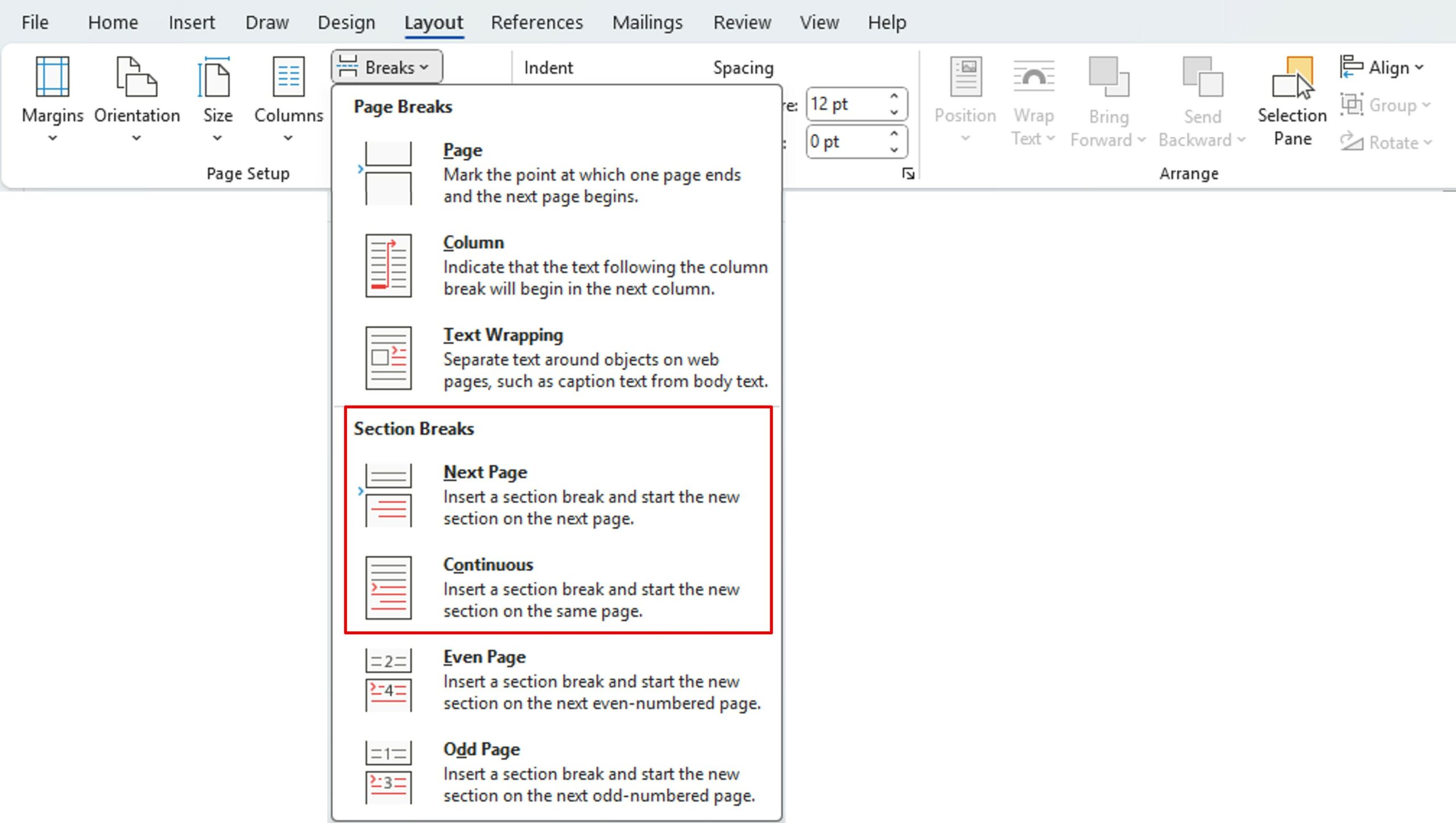
This allows you to delimit the desired area by adding a section break before and after.
You can now change the layout without affecting the rest of the document.
Tip: When you change a layout (orientation of one page after another, adding columns, etc.) Word automatically add sections continuously.
Warning: To change the page number in a section, click on the Link to Previous button in the Header and Footer menu, so that it is no longer active.

View and find sections
To view section breaks, on the Home menu, in the Paragraph section, click the mark show button (¶).

Section breaks are marked by double dotted lines.
In the example below, we can see that the page has:
- 2 section breaks are continuous, in order to put a text box on 2 columns in the same page
- 1 section break on a next page
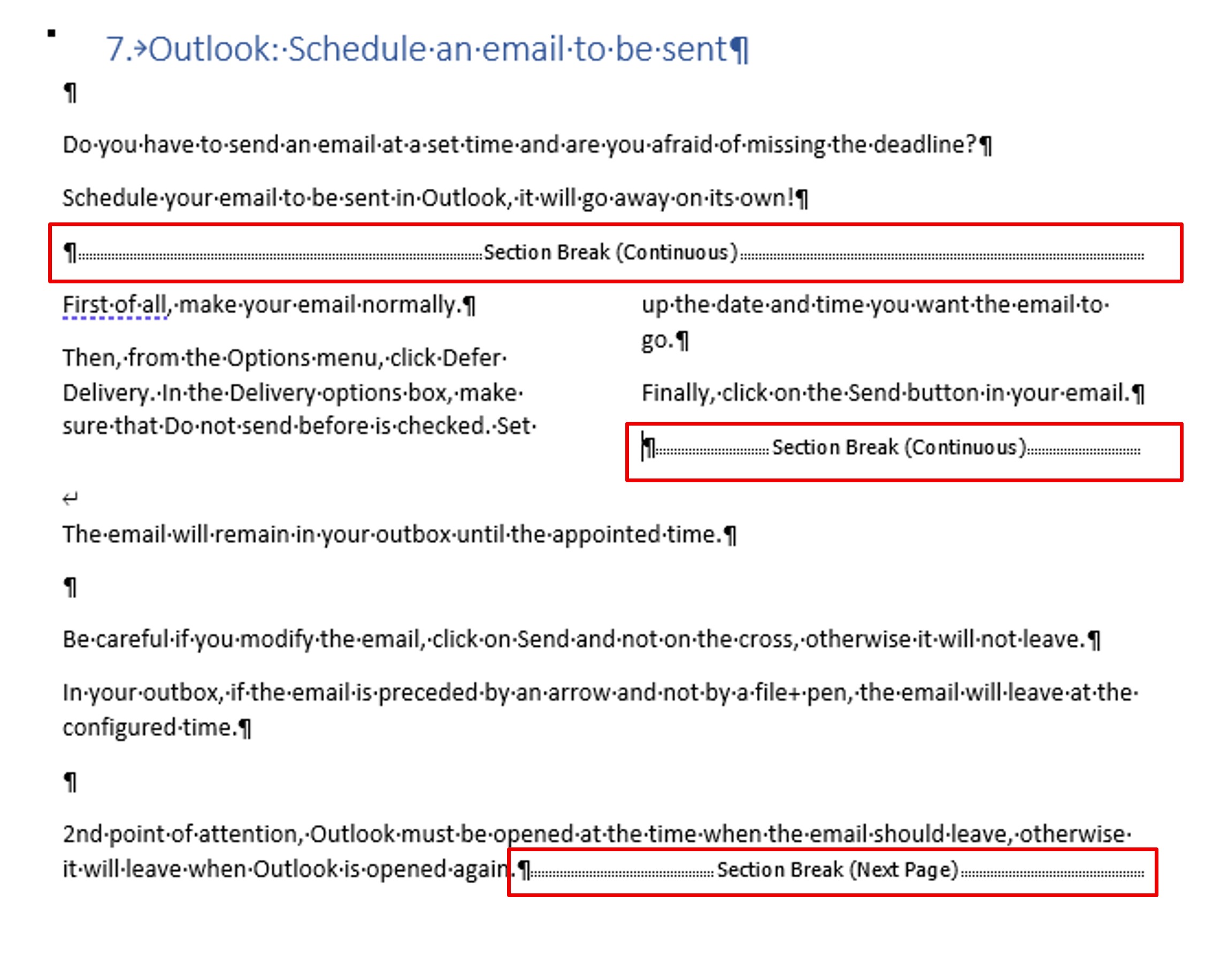
Note: It is possible to delete a section break by removing the double dotted line.
Section Locations
Word numbers the sections. To find out which one you are in, you have to right–click at the bottom right of the screen (in the status bar) and check Section.
The menu that appears shows you all the elements on the page.
This information is useful for verifying that your changes apply to the correct section, especially in long documents.
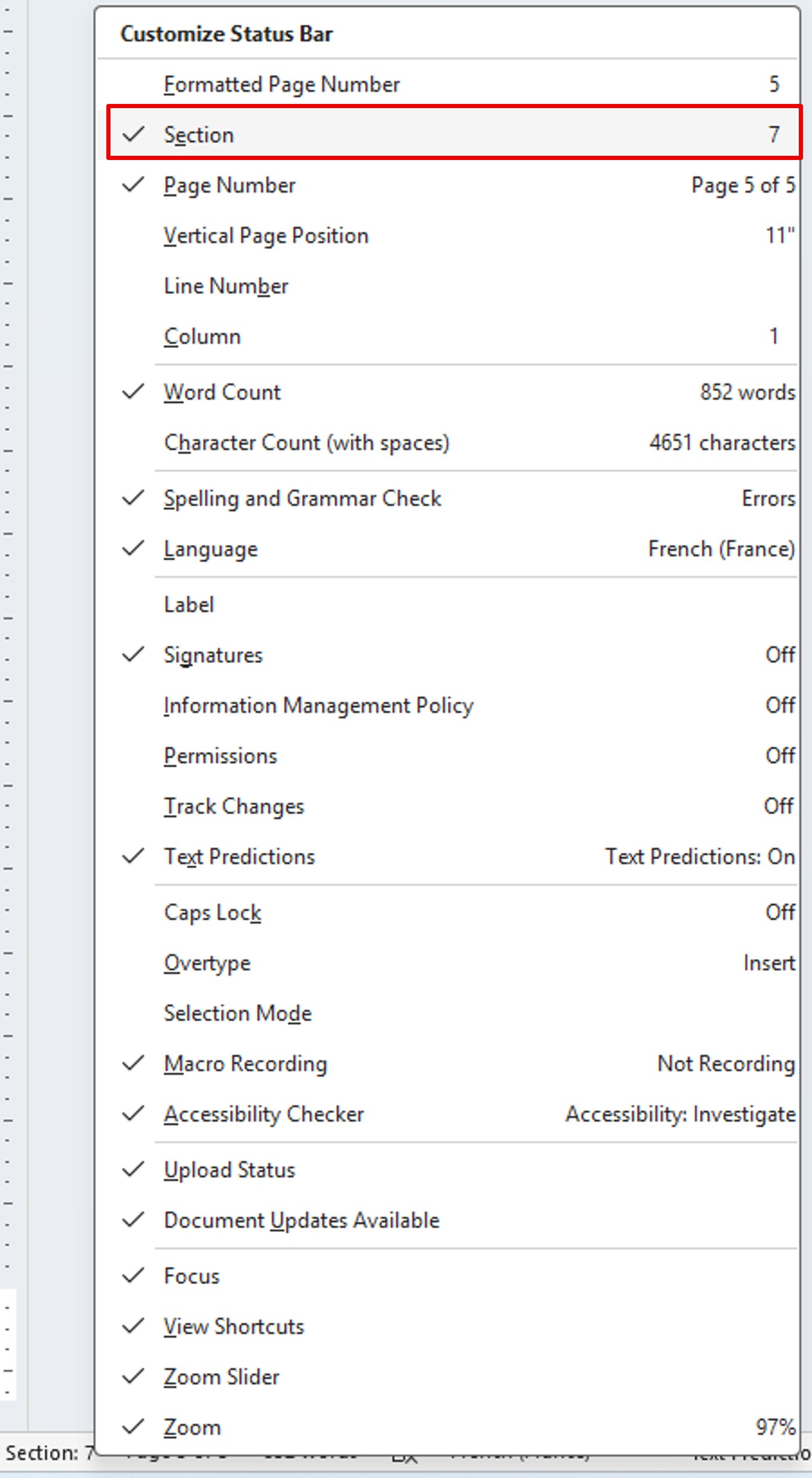
So your status bar (at the bottom left of your screen) tells you which section you are in.