
You often send the same email and have to copy the subject line, body of the email, etc. each time. ? Use an Outlook template instead.
Outlook offers a simple solution: email templates. They allow you to prepare a typical email (recipients, subject, content) and reuse it at will, without starting from scratch.
Setting up and saving the Outlook template
First, open a new email and set up all the elements: recipients (if they are always the same), Subject, Body of the email, even the options (if needed).
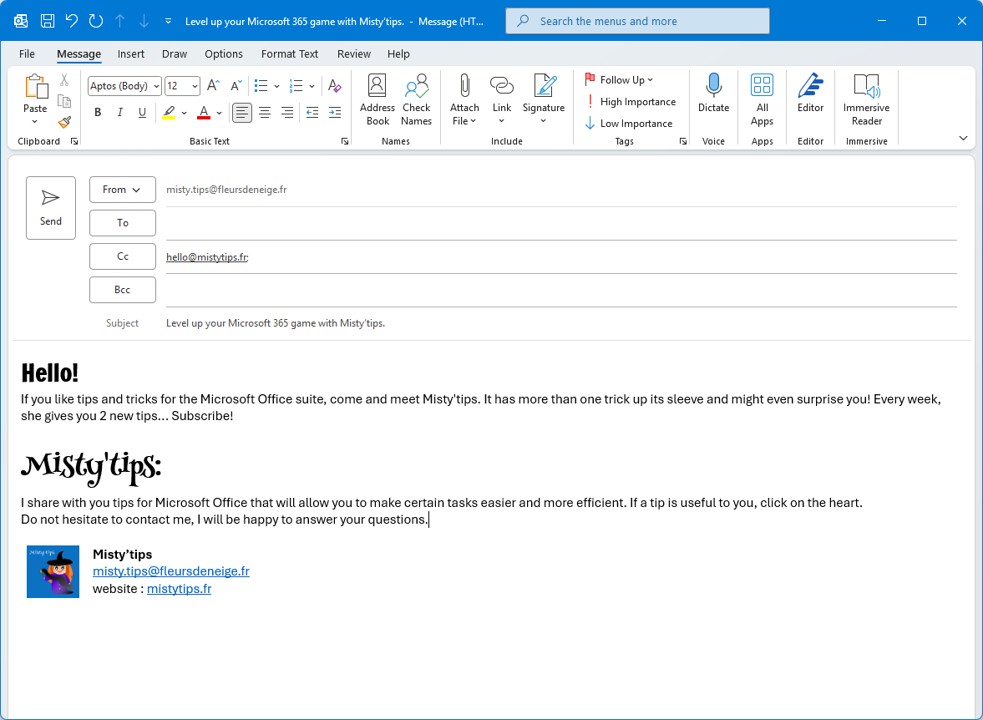
Attention: If you have a signature that is added by default, don‘t put it in the template. It will be added when using the created template.
Then, from the Email File menu, click Save As.
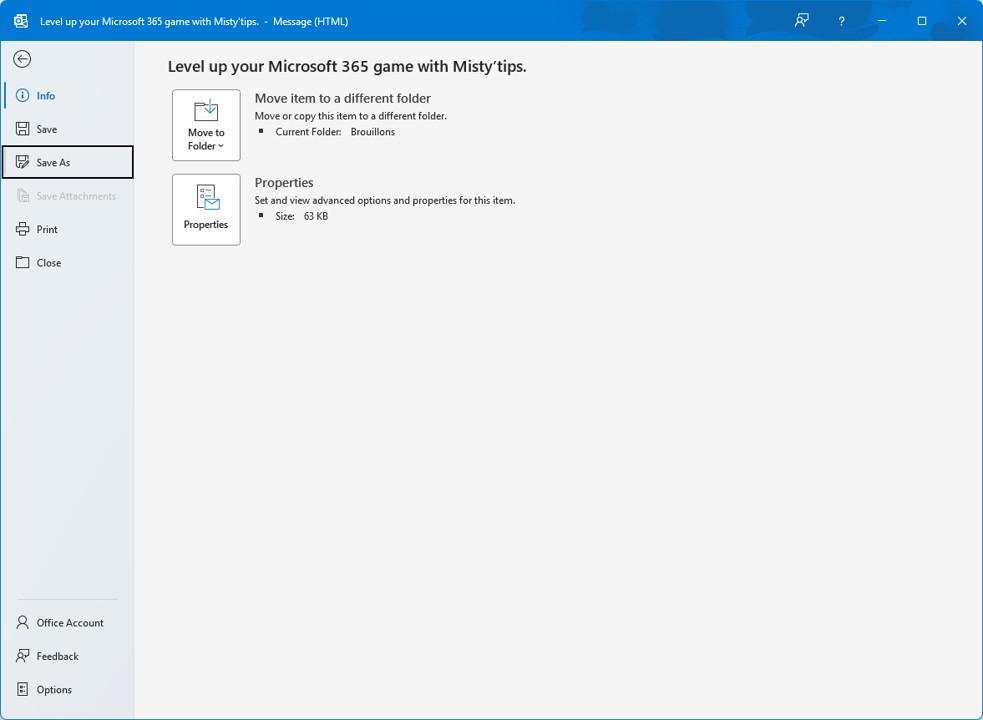
At the bottom, in File name, choose Outlook Template (*.oft).

The registration file will change on its own. Outlook opens the folder where custom templates are stored by default.
You can of course change the folder.
Change (or not) the name of the file to be saved and validate.
You can send or delete the created email.
Using the template in an email
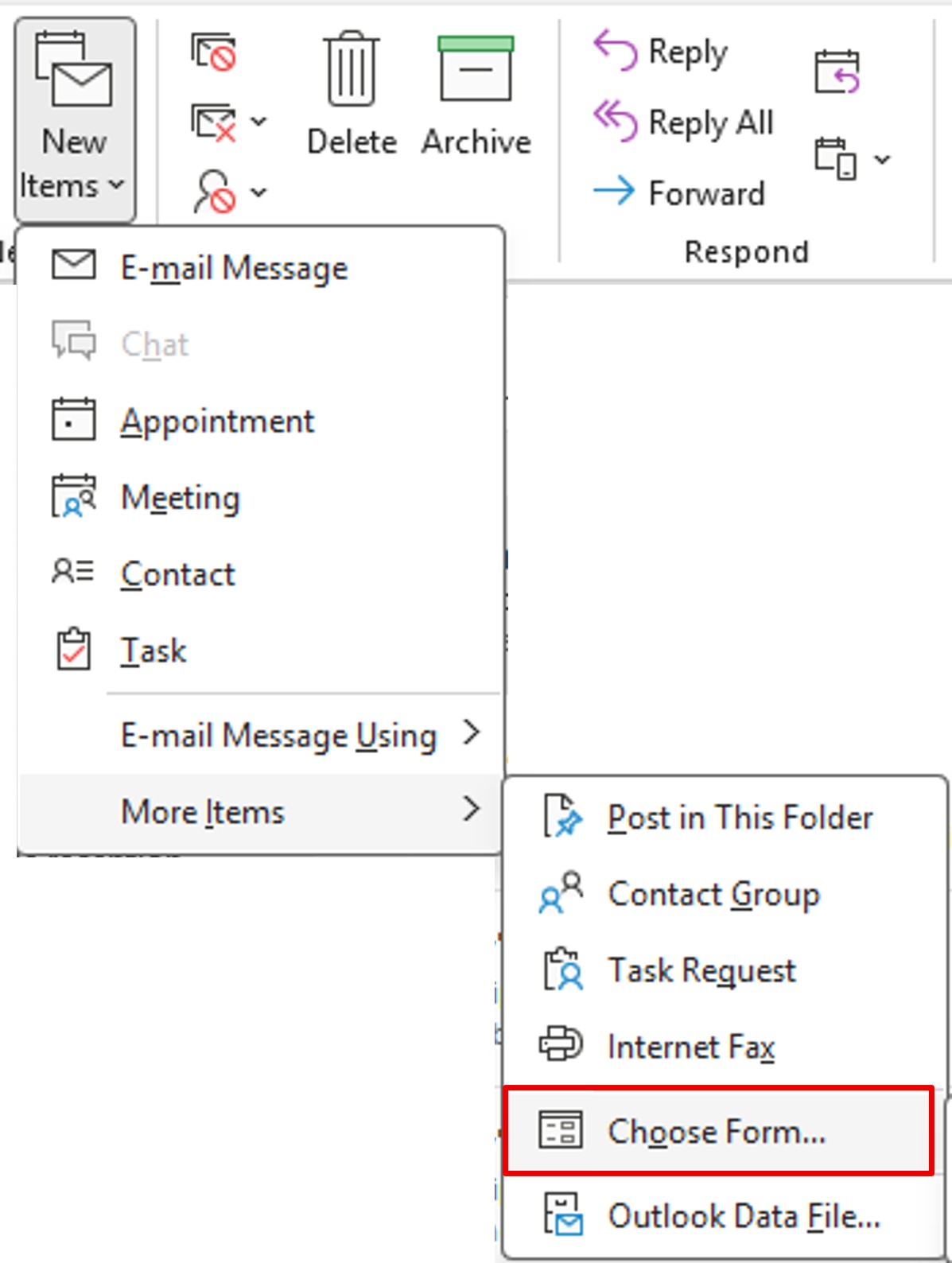
To use the template you created, on the Home menu, click New Items. Then, click More Items. Finally, select Choose Form.

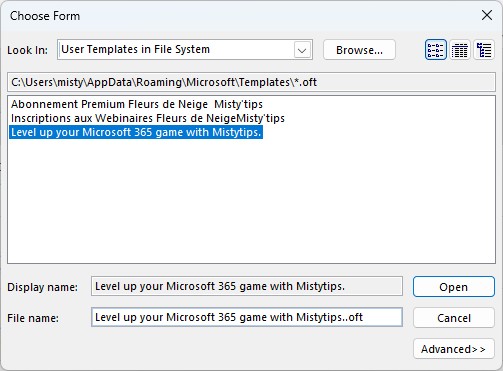
In the window that opens in the Look in drop-down list, select User Templates in File System.
If you had changed the record folder for your model, click Browse and go to the folder.
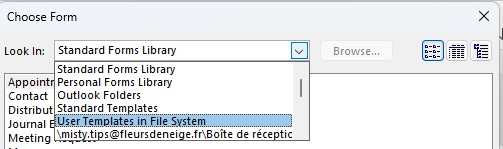
Finally, choose the template you want to use and click Open.