

Inspired by a color? Wherever it appears on your screen, the snipping tool color picker makes it easy to incorporate it into your visuals.
When you use the Screenshot Tool from Shortcuts, Windows: Shortcut Screen Snipping Tool, you have additional options:
- Annotate your screenshots directly
- Select a color to apply elsewhere.
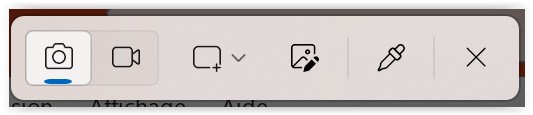
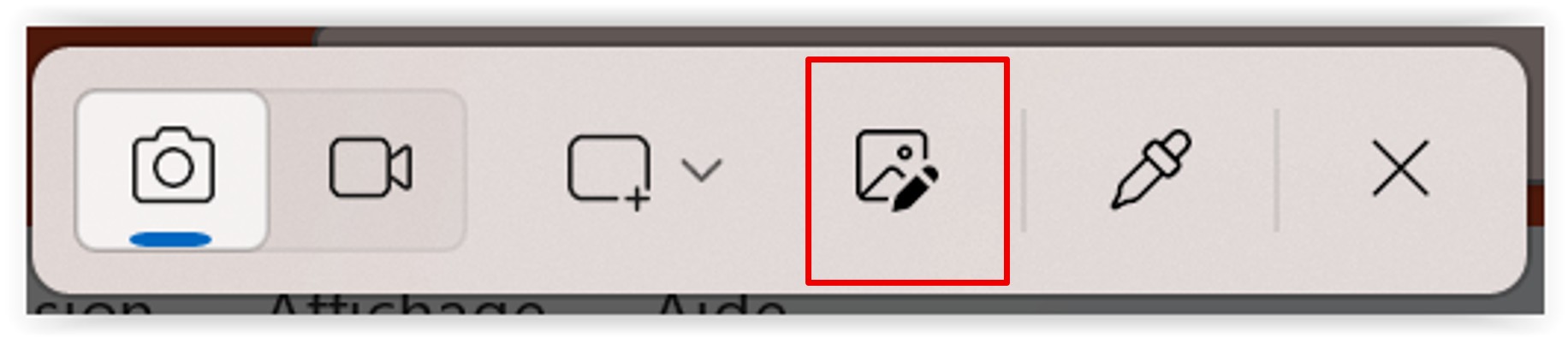
Quick markup
When you click on the Quick markup icon (or the keyboard shortcut CTRL+E), you can select an area of your screen.
From the selected area, you can:
- Share the capture made
- Do a Bing search
- Ask Copilot
- Annotate with a pen (choice of colours possible)
- Highlight
- Erase annotations
- Add a shape (or a smiley) to circle for example.
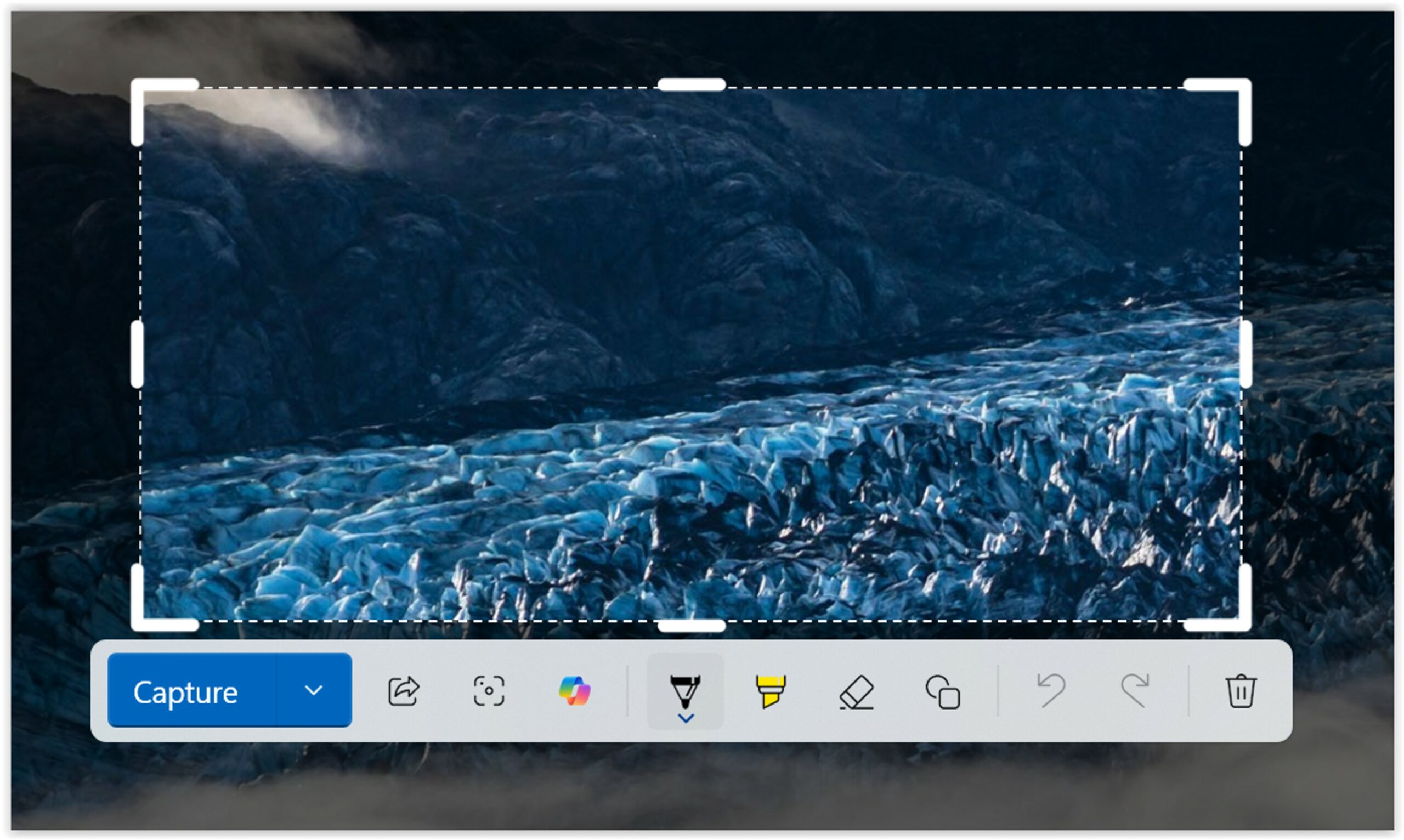
Once you‘ve finished annotating your screenshot, click Capture.
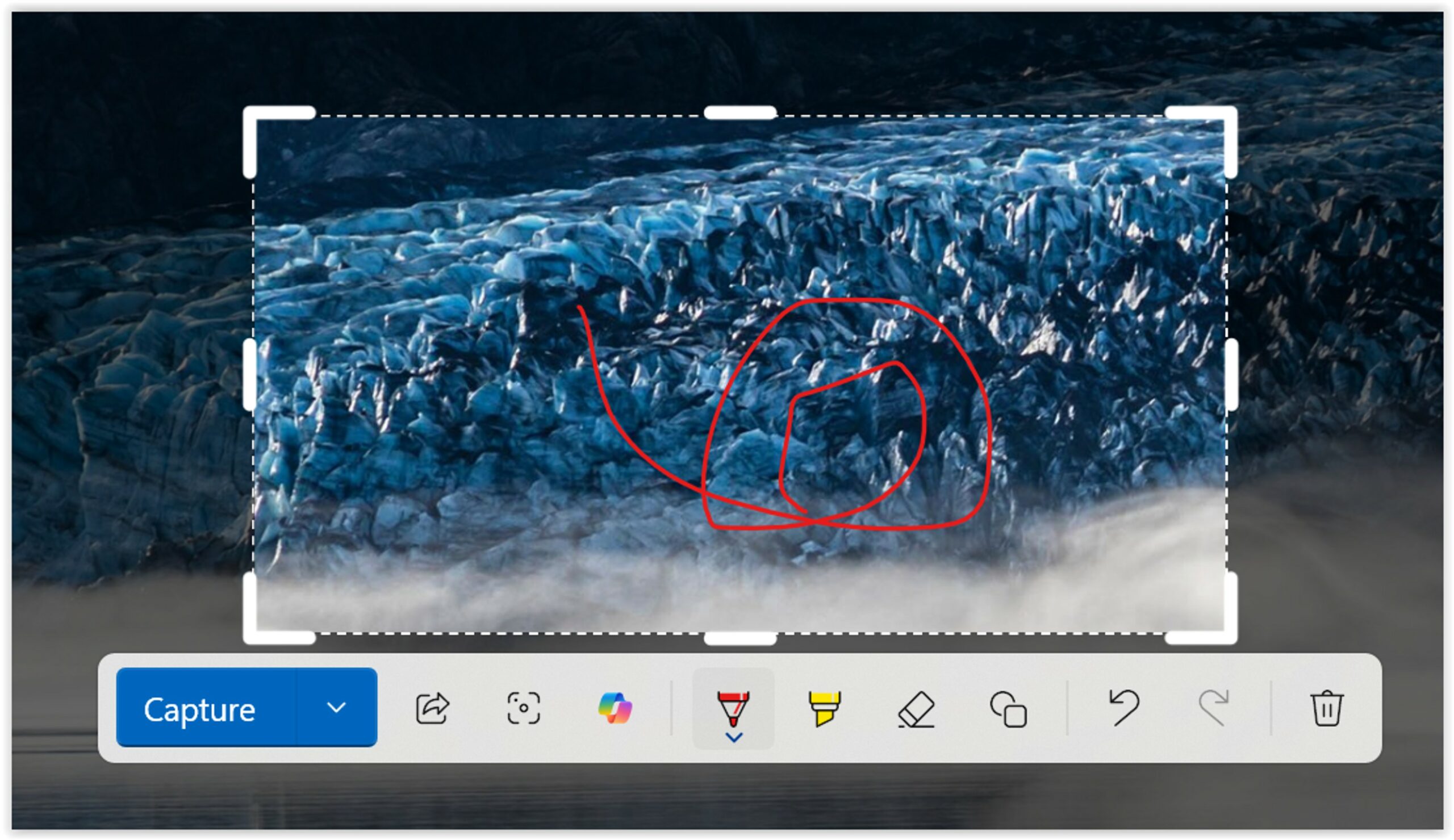
This gives you the captured image with your markup.

Color picker
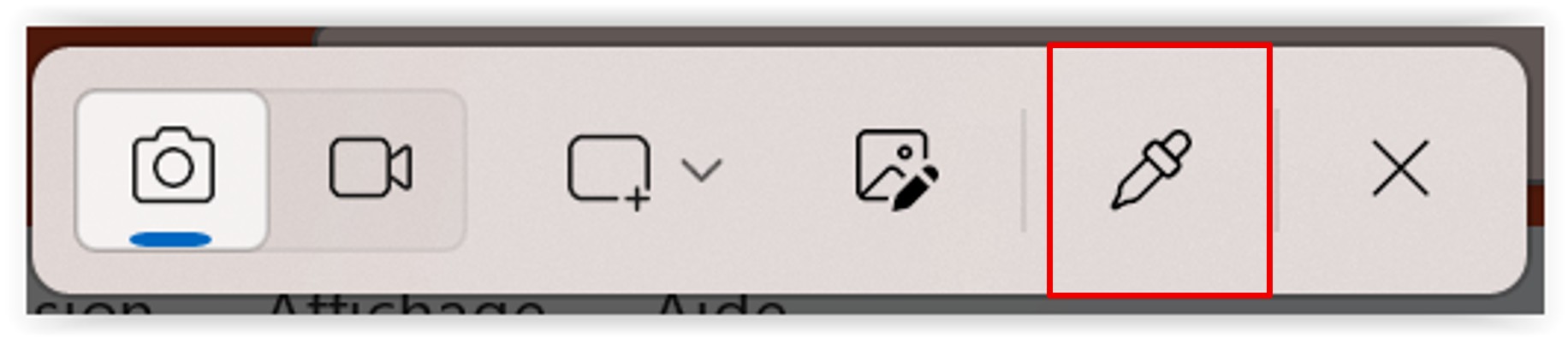
When a color on an image, site, or other image inspires you for your presentation (table or other), use the screenshot tool and click the eyedropper. This will trigger the color picker.
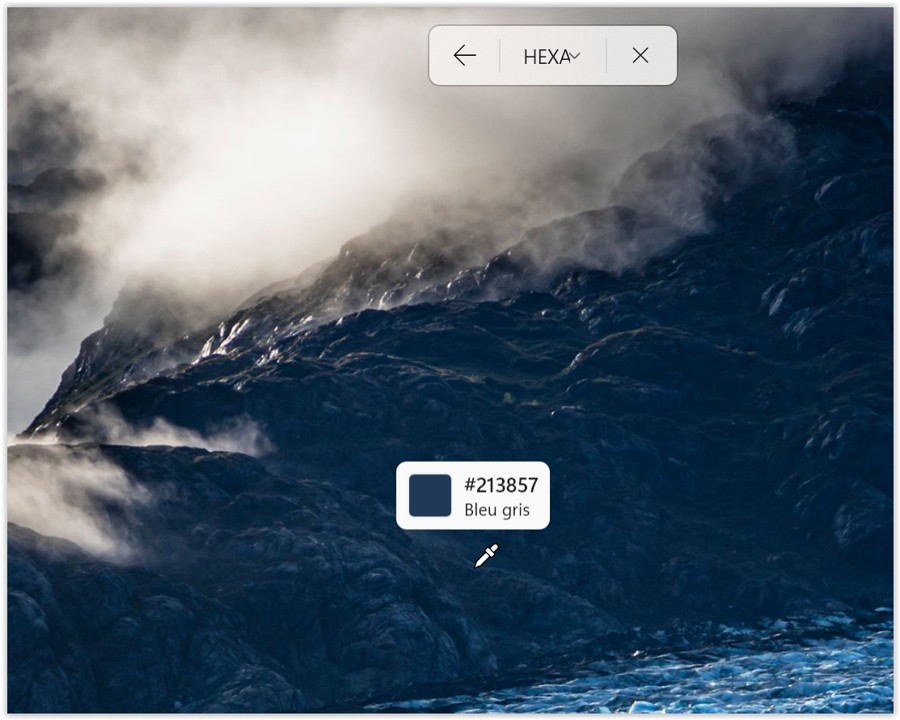
Place the eyedropper on the color you desire. Then validate with a left mouse click (or the enter key on your keyboard).
You can move your mouse until you point to the right color.
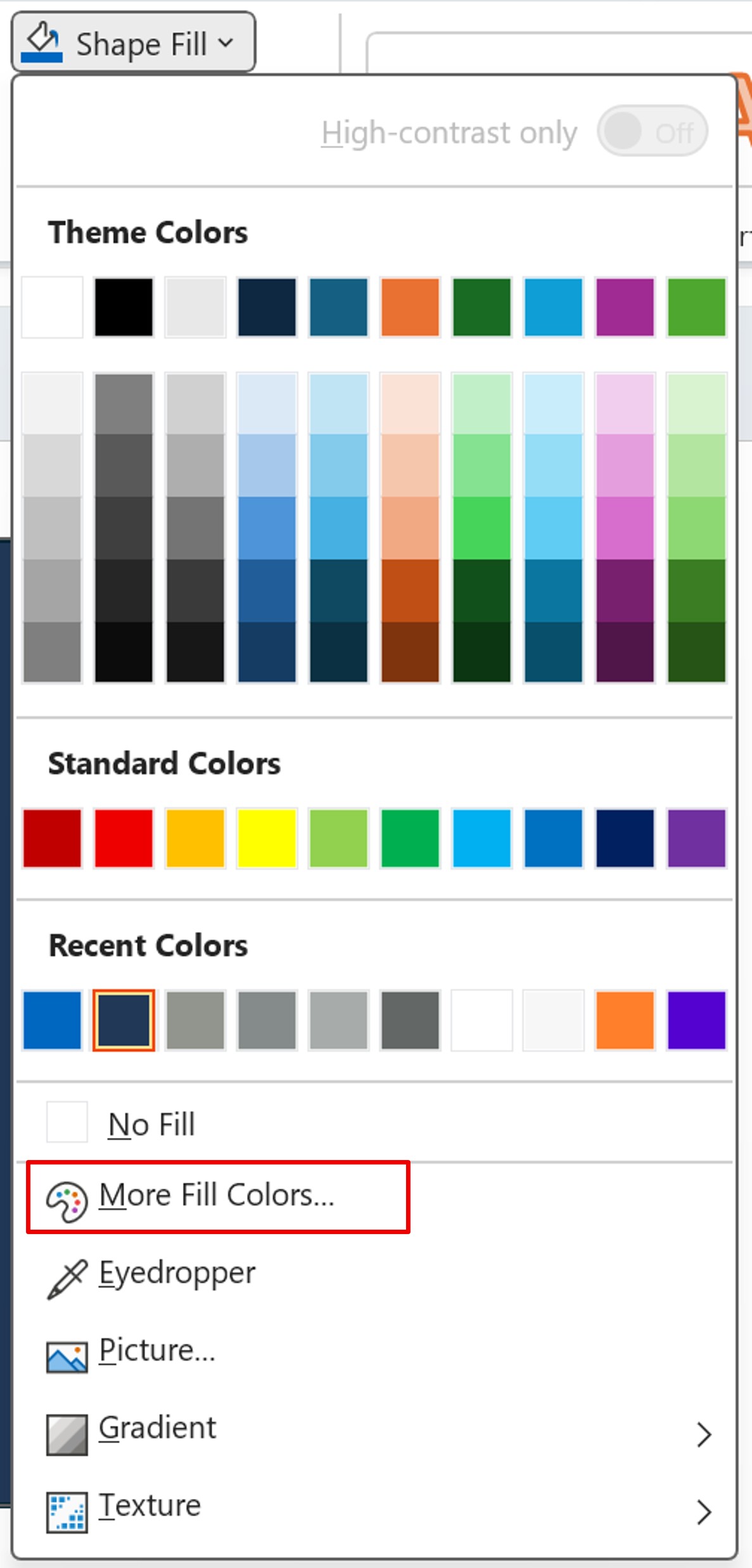
Then, to apply the color, click on More Colors… to access more colors than the palette offered.
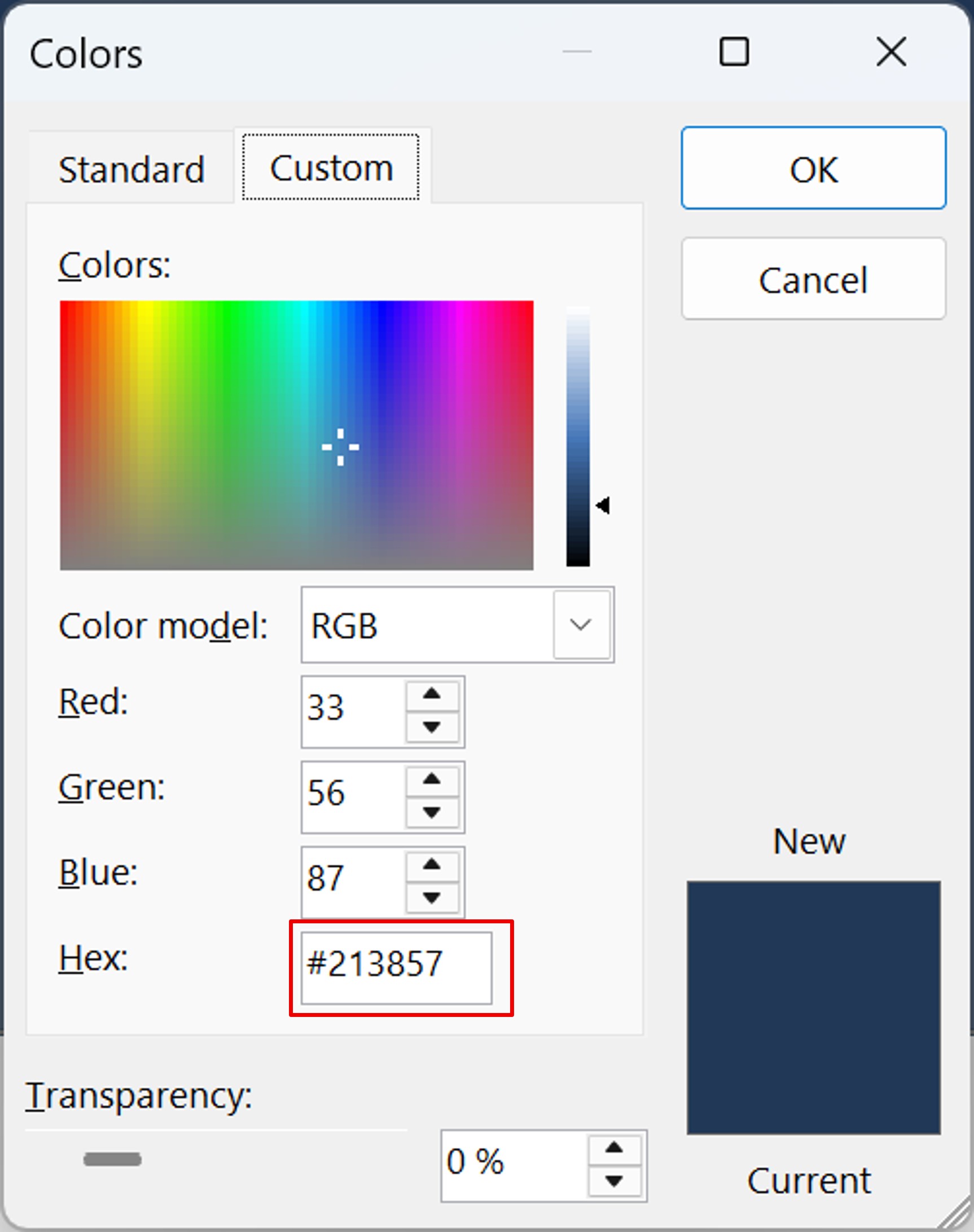
In the Custom tab, paste the copied value (by CTRL+V or Paste in the context menu) into the Hex field. Then validate.
You get your design with the color of your choice.

The complementary features of the Snipping tool, will allow you to do everything in one click without having to open many windows.