
Have you ever received an annoying notification while your screen was stretched out on the meeting room screen?
Or do notifications confuse you when you‘re on a call or in a meeting?
To remain discreet when presenting in a meeting, there are several options:
- Not showing notification content
- Don‘t show notifications
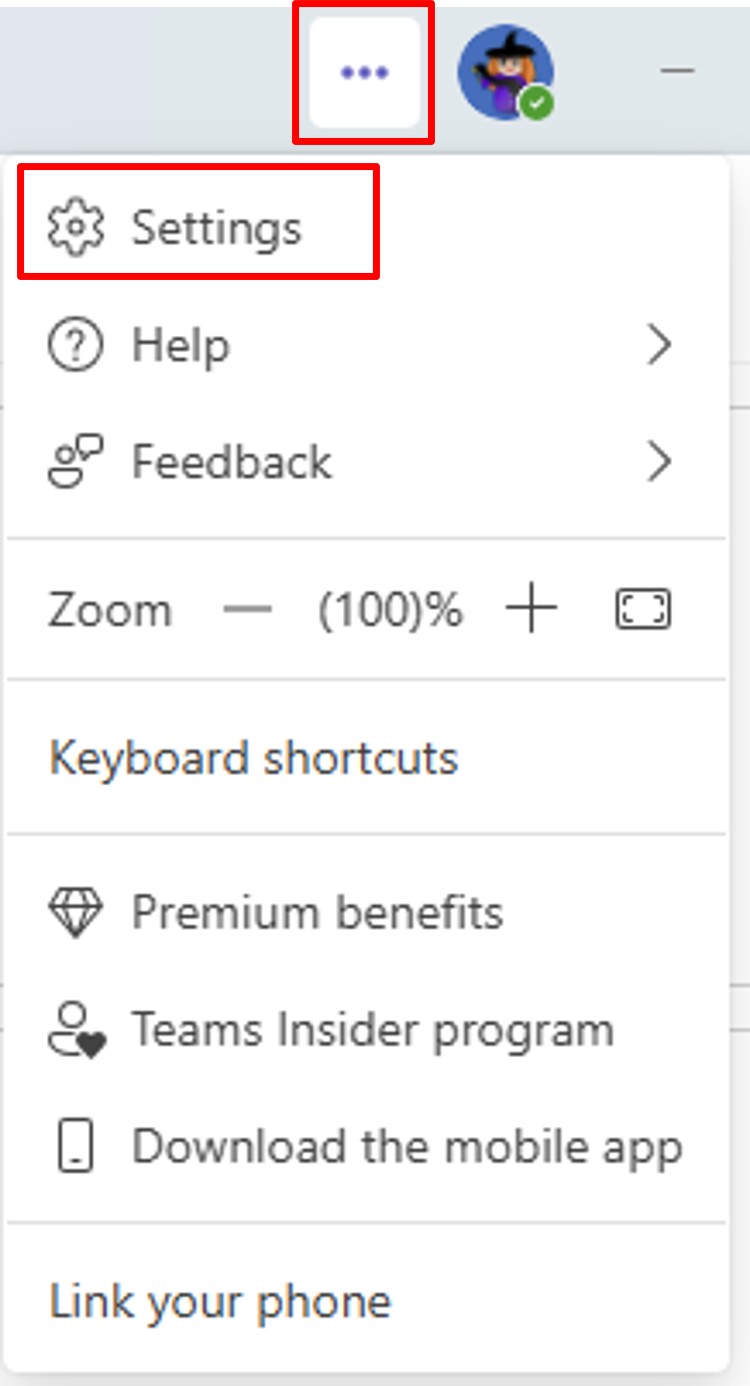
Go to the Teams settings, by clicking on the 3 dots next to your photo (or initials) at the top right of your screen.
Then from the menu, click on Settings.
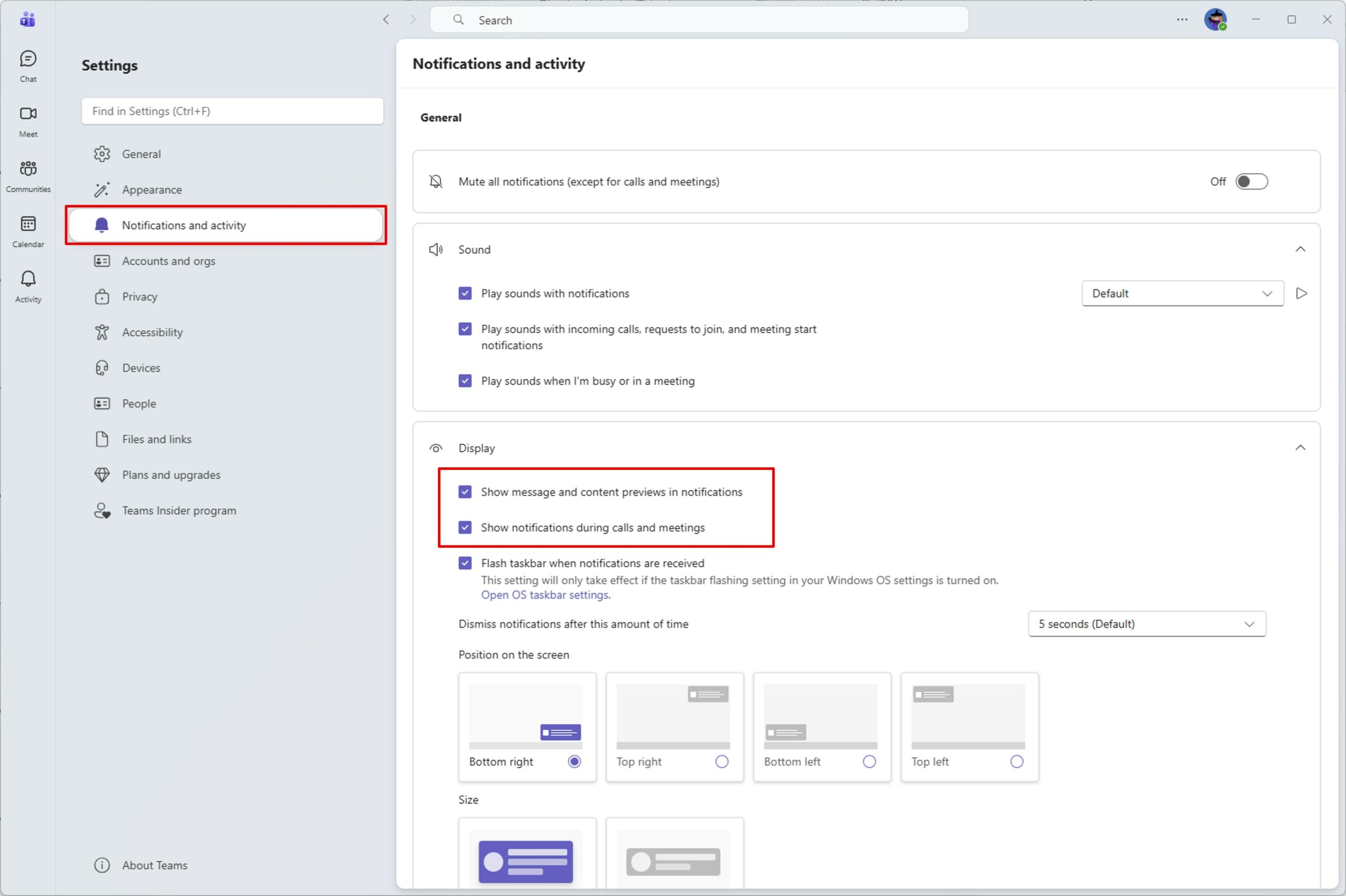
Go to the Notifications and activity menu, then in the Display section, you can uncheck:
- Show message and content previews in notifications
- Show notifications during calls and meetings
By unchecking Show message and content previews in notifications, the notifications you receive will only show the name of the person contacting you.
💡Practical when you often show your screen (work in pairs, etc.)
By unchecking Show notifications during calls and meetings, you will no longer receive a pop–up when you are on a call or in a meeting.
💡No more distractions during calls and meetings.
💡Do Not Disturb status blocks all pop–ups. By default, this status is enabled when you share your screen.