
When you turn on your computer, do you always launch the same applications? They could open on their own… That would give you time to have a coffee!
For an application to launch itself, it must be added to the startup applications. To do this, you need to proceed in 2 steps:
- Identify the application path
- Add the app to the startup folder.
You can always disable this automatic launch later.
Configuring from File Explorer
Identifying the Application Path
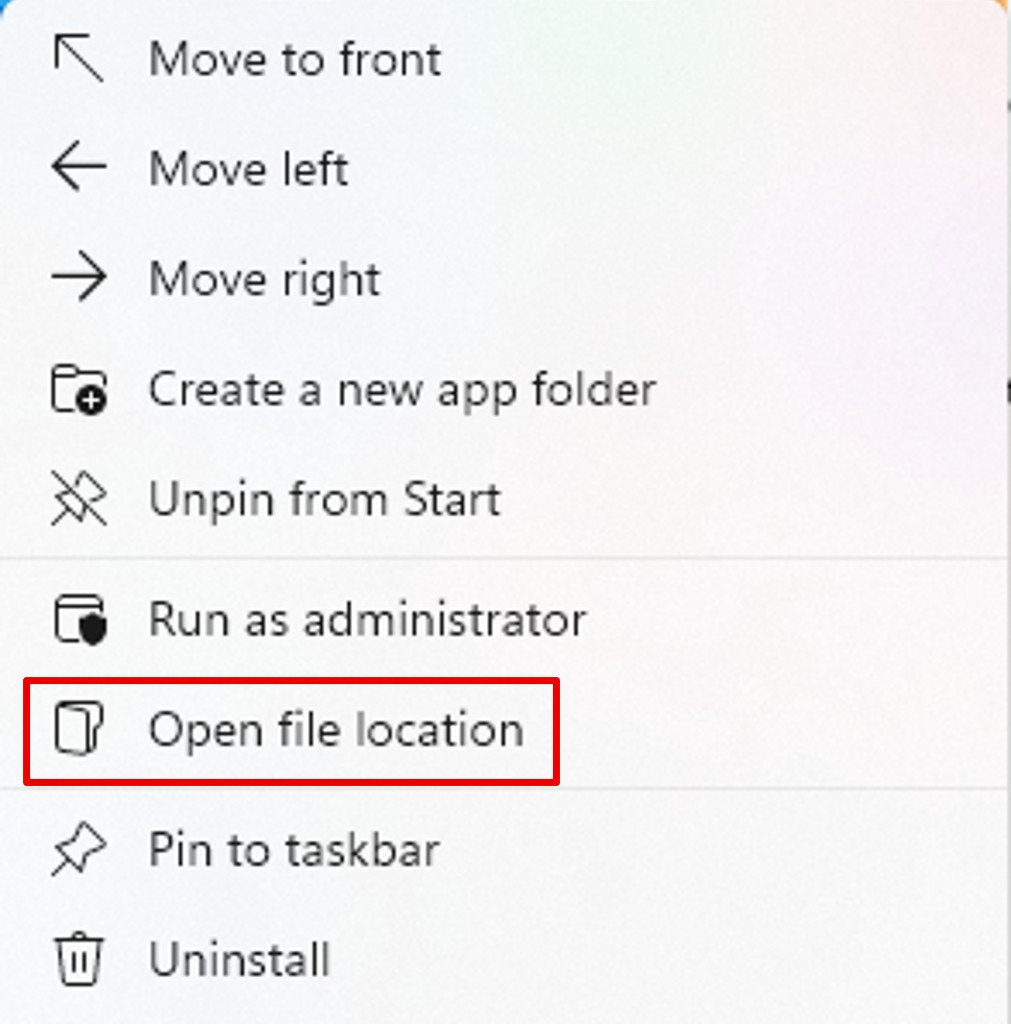
Click on the Windows button and right–click on the app.
Next, click Open file location.
Note: If you don‘t see the option, the application cannot launch at startup.
In the folder that appears, click on your application and copy it (CTRL+C).
Add the app to the startup folder
Open a new File Explorer window, go to the following folder:
C:\Users\[UserName]\AppData\Roaming\Microsoft\Windows\Start Menu\Programs\Startup
Paste your application shortcut (CTRL+V).
Note: To find the path of the startup folder, press the WINDOWS + R keys (to launch the Run application), type shell:startup and validate. This opens the startup folder.
Configure from Task Manager
Identifying the Application Path
Proceed as seen above to open file location.
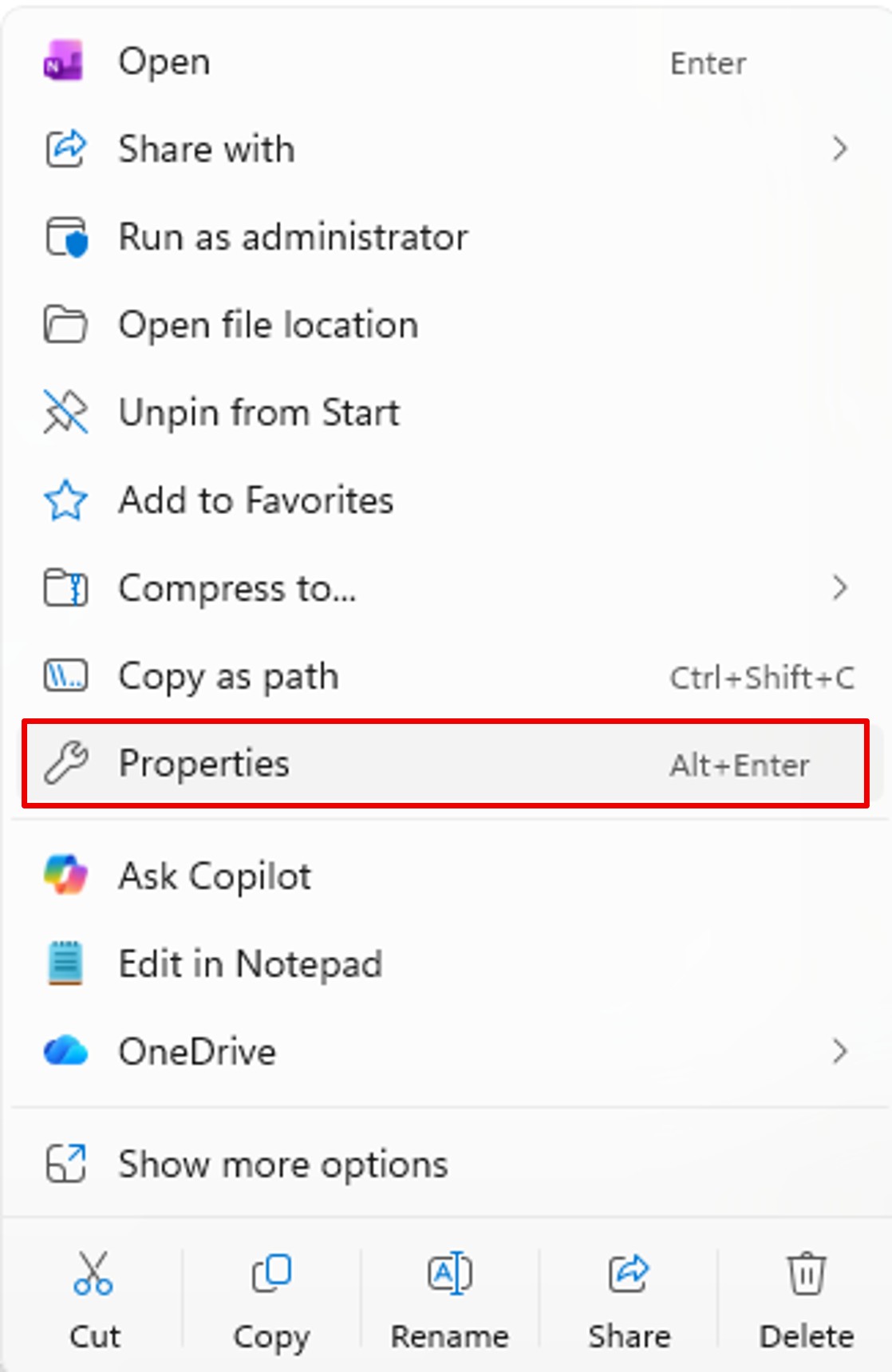
When the folder opens, right–click on the shortcut and click Properties.
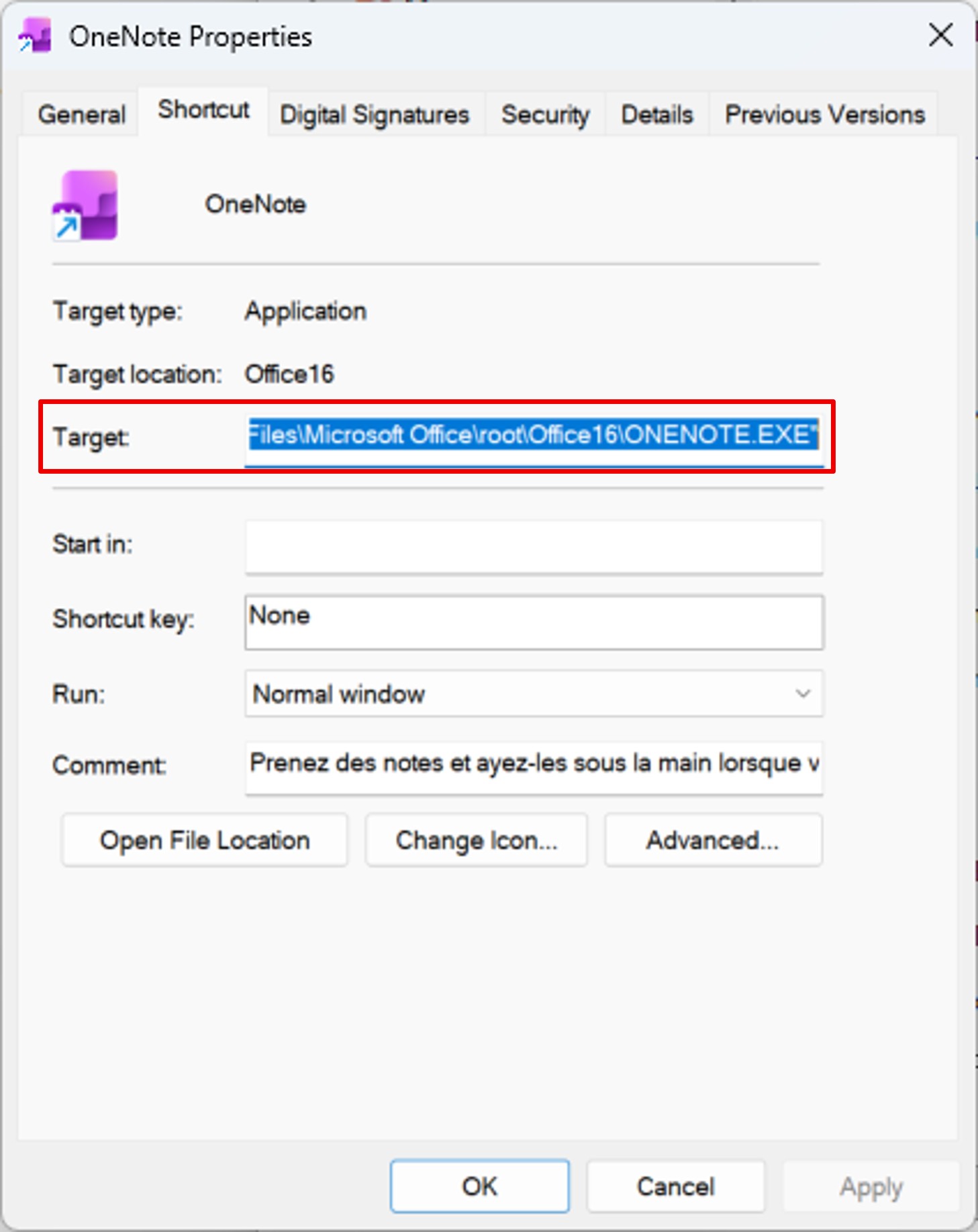
Copy the entire path of the Target.
Add the app to the startup folder
Open Task Manager by typing CTRL+SHIFT+ESC at the same time.
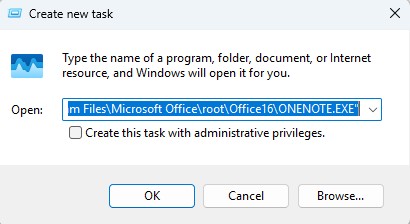
On the Startup apps menu, click Run new task.
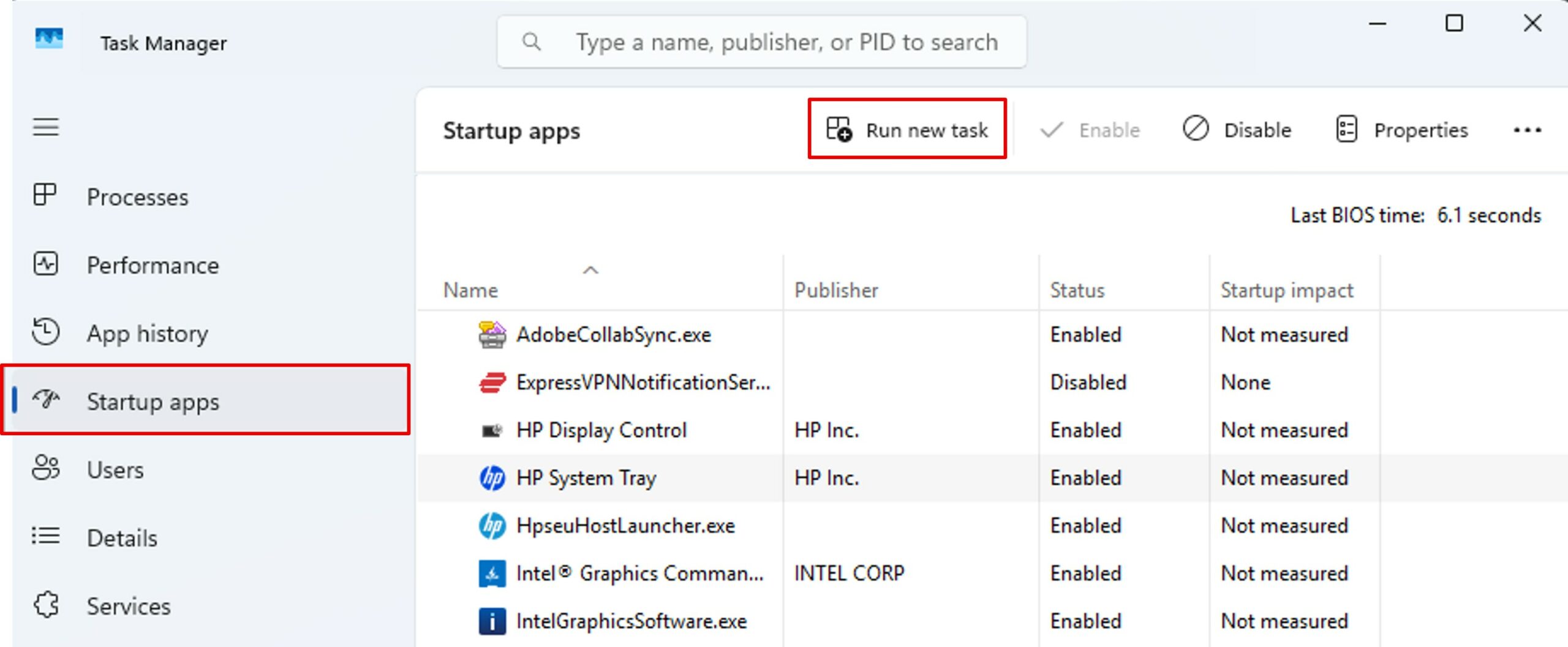
Paste the path copied earlier and validate.