
Want to put your apps in a language other than the default?
Change the display language in Windows
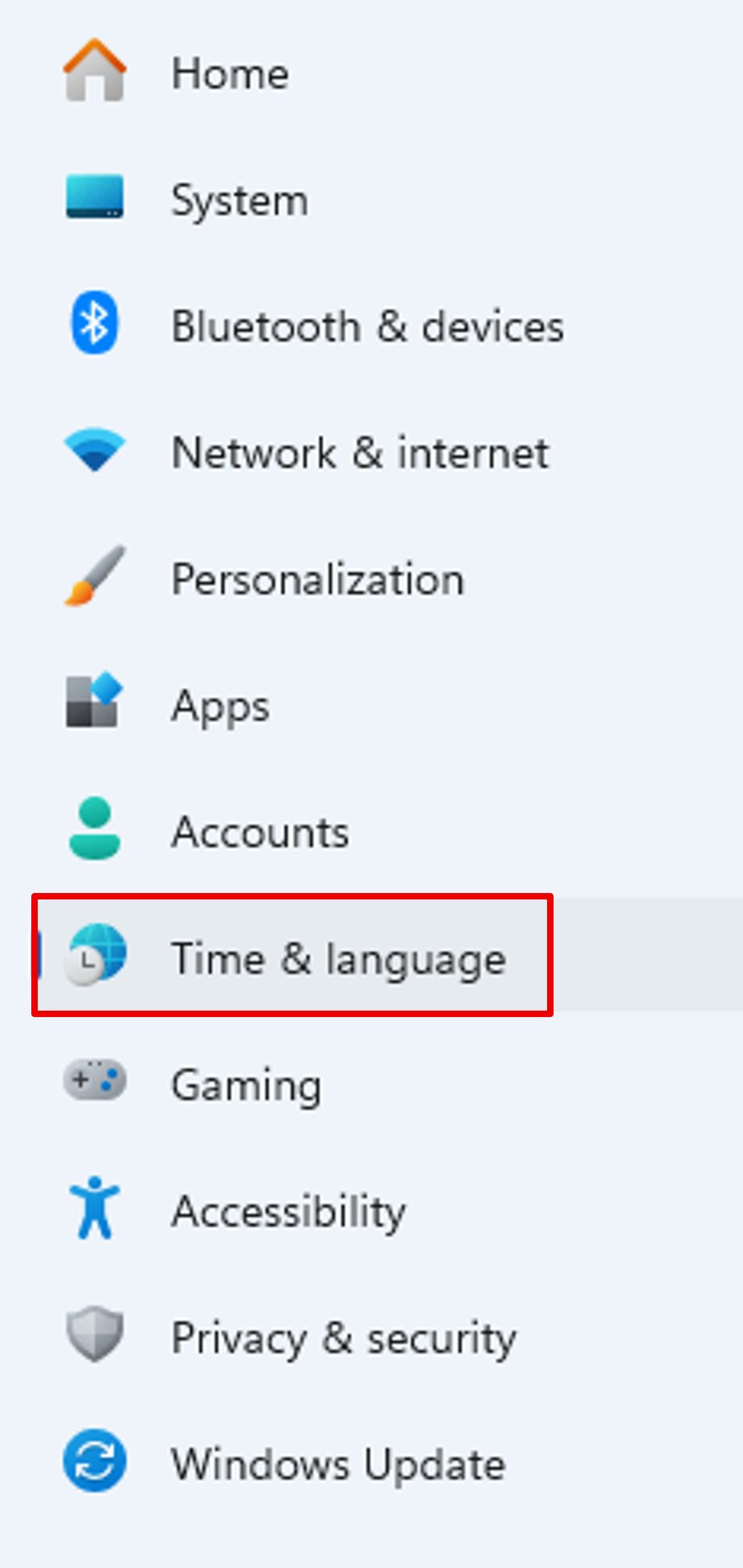
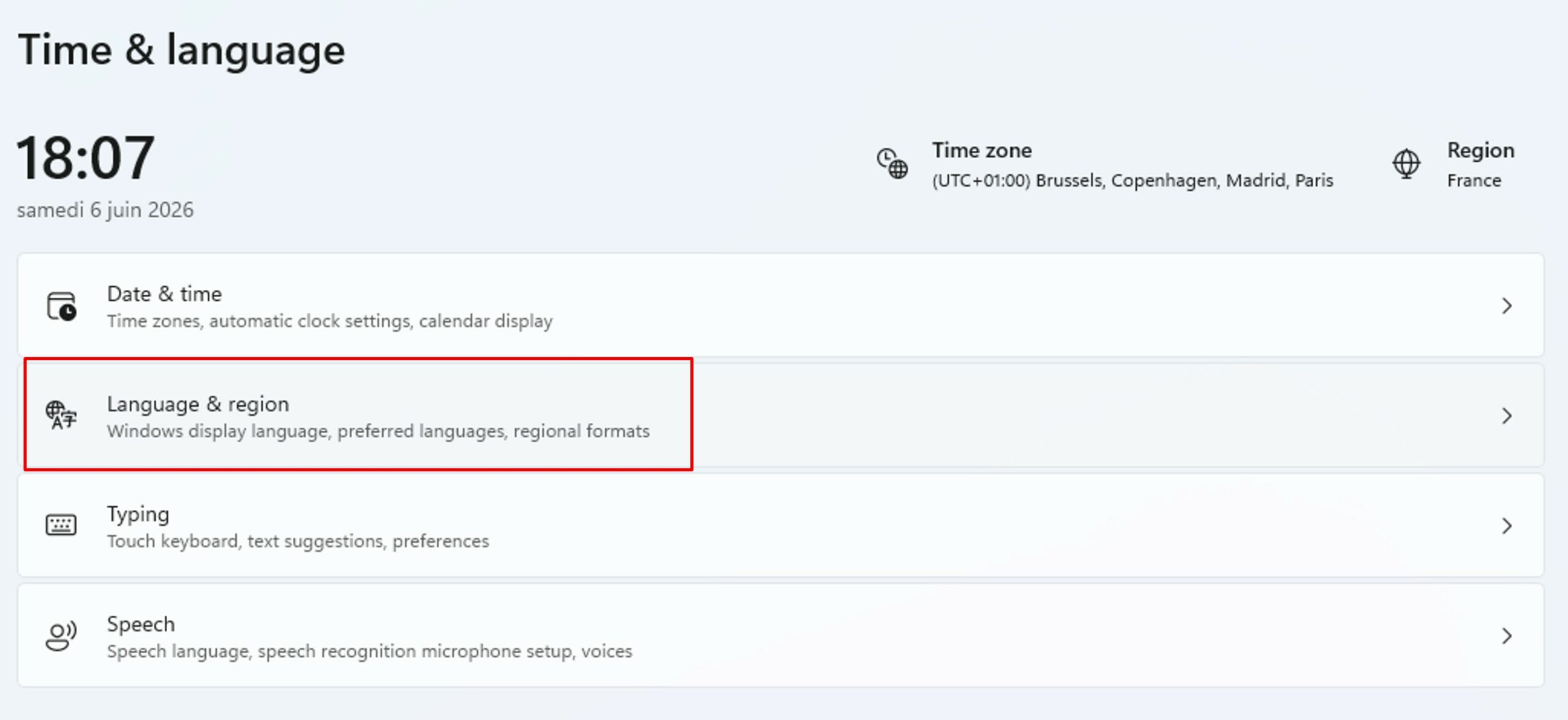
In Windows Settings, click Time & Language, and then click Language & Region. In the Preferred Languages module, click Add Language.

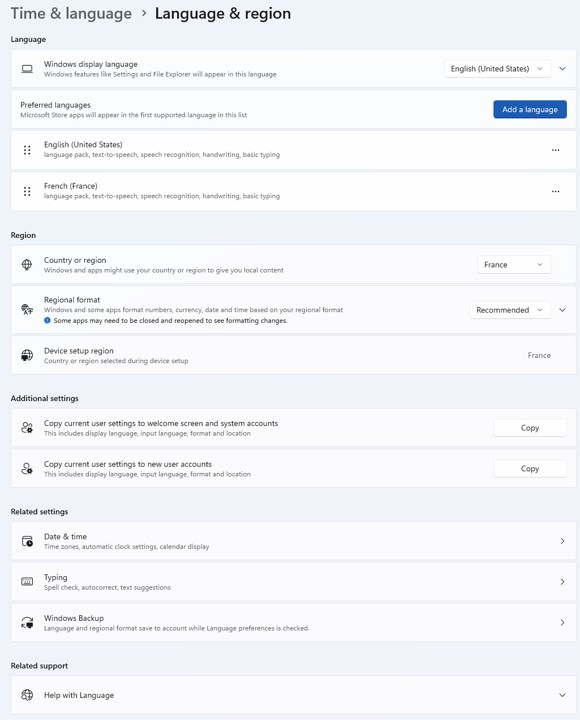
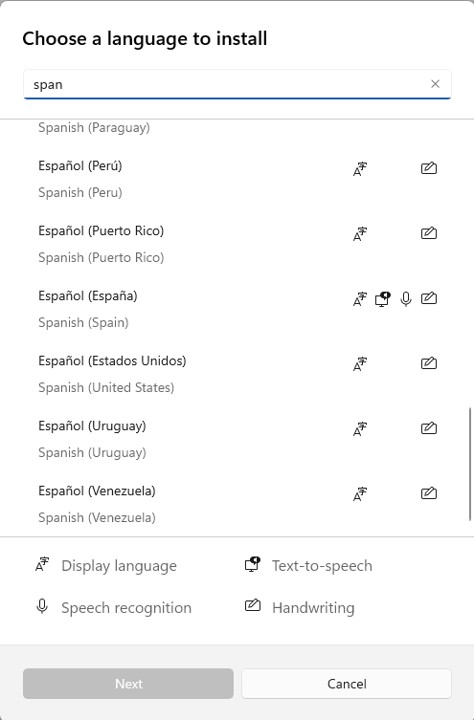
Choose your language.
Windows tells you what can be installed via small icons:
- Display language
- Text–to–speech conversion
- Speech recognition
- Handwriting
Click next.
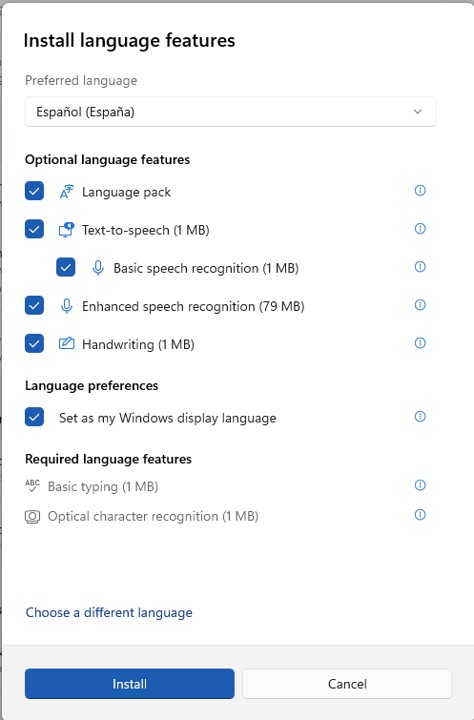
Check the modules you want to install.
Checking Set as my Windows display language will change the language for all your displays.

If necessary, you can always change between the installed languages afterwards.
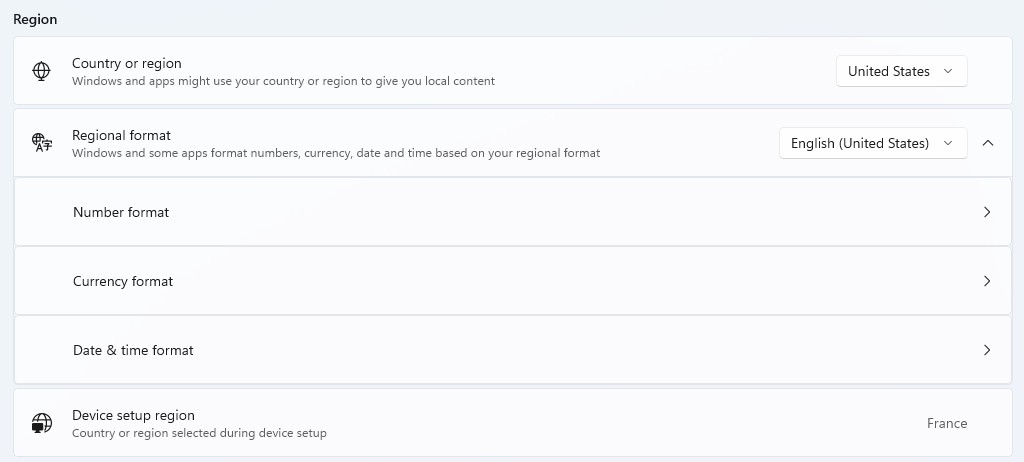
Don‘t forget to customize your region settings.
In Office apps
The language is also changed for all Office applications.
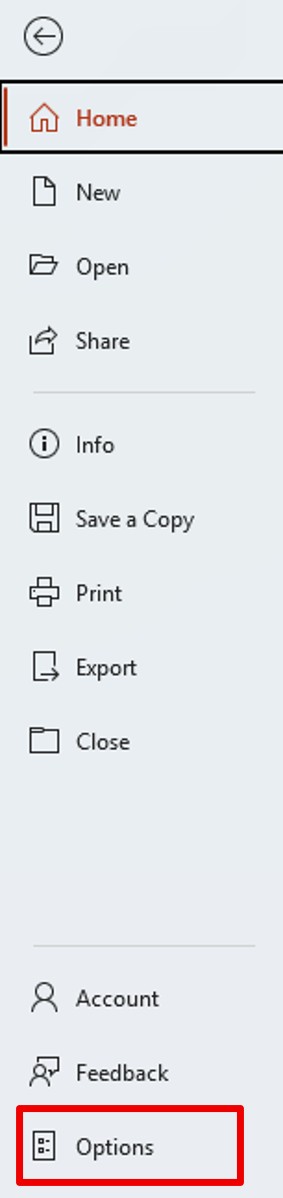
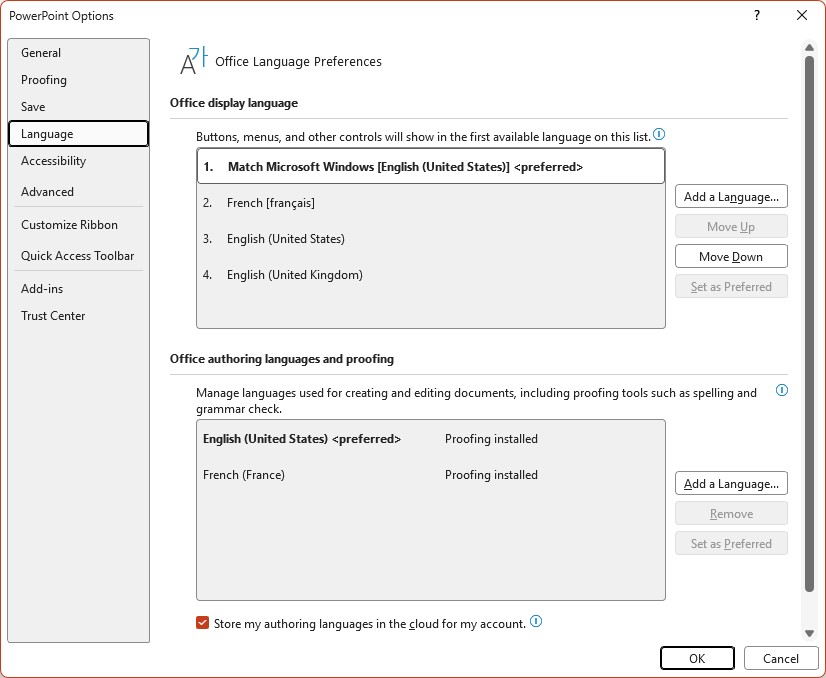
To check, launch an application and click on the File menu and then Options.
In the Language menu, you can see that the default language is the same as Windows.
You can change it. This will impact all Office applications.