
Do you need to write meeting minutes and send them quickly to the participants?
OneNote, which is included with Office, is connected to other applications, especially Outlook. This makes it very easy to switch from one application to another.
OneNote can automatically retrieve information from an Outlook meeting, including the date, participants, invitation details, and much more. It’s a simple way to save time and keep all your notes centralized.
Insert Meeting Information
First, create or open a blank note. Then, on the Home tab, click Meeting Details.

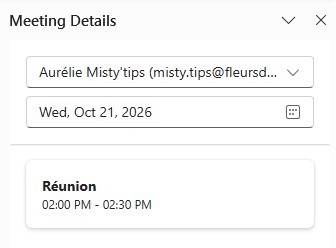
The meetings scheduled for the current day in your Outlook calendar will be displayed.
Click on the meeting you want to use.
Tip: Next to the date field, click the calendar icon to select a different day and view the meetings scheduled for that day.
This allows you to either:
- Create meeting minutes after the meeting has taken place.
- Prepare your notes in advance (agenda, discussion points, etc.).
Take Notes in OneNote
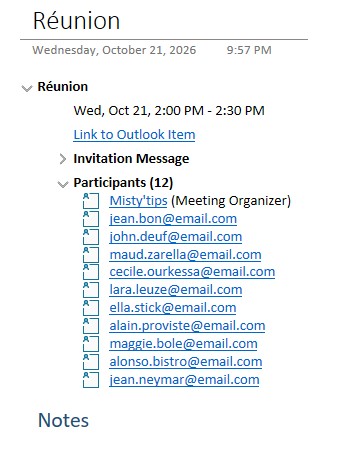
OneNote imports all the information from the meeting invitation, including the participant list. If the participant list is not visible, click (Expand).
You can check off the participants who were actually present.
Send the Meeting Minutes to Participants
Once you have finished taking notes, go to the Home tab and click Send Page.


The email is automatically formatted with:
- The participant list in the To field.
- The page title as the email subject.
- Your notes in the body of the email.
If no further changes are needed, it’s ready to send!
Note: You can use the Email Page button for any OneNote note. In the email, you can add any recipients you choose.