
Using a touchscreen with a stylus but your drawings aren’t quite precise? Let the magic transform them into perfect geometric shapes.
Touchscreens are convenient for writing and drawing directly on a document. On the other hand, the result sometimes leaves something to be desired. Fortunately, there are tools that help make drawings and writing prettier.
Depending on the tool, the options and assistance vary.
So, let‘s see what the different apps offer:
Spoiler alert: on OneNote, the digital notebook par excellence, you will be able to treat yourself.
Outlook
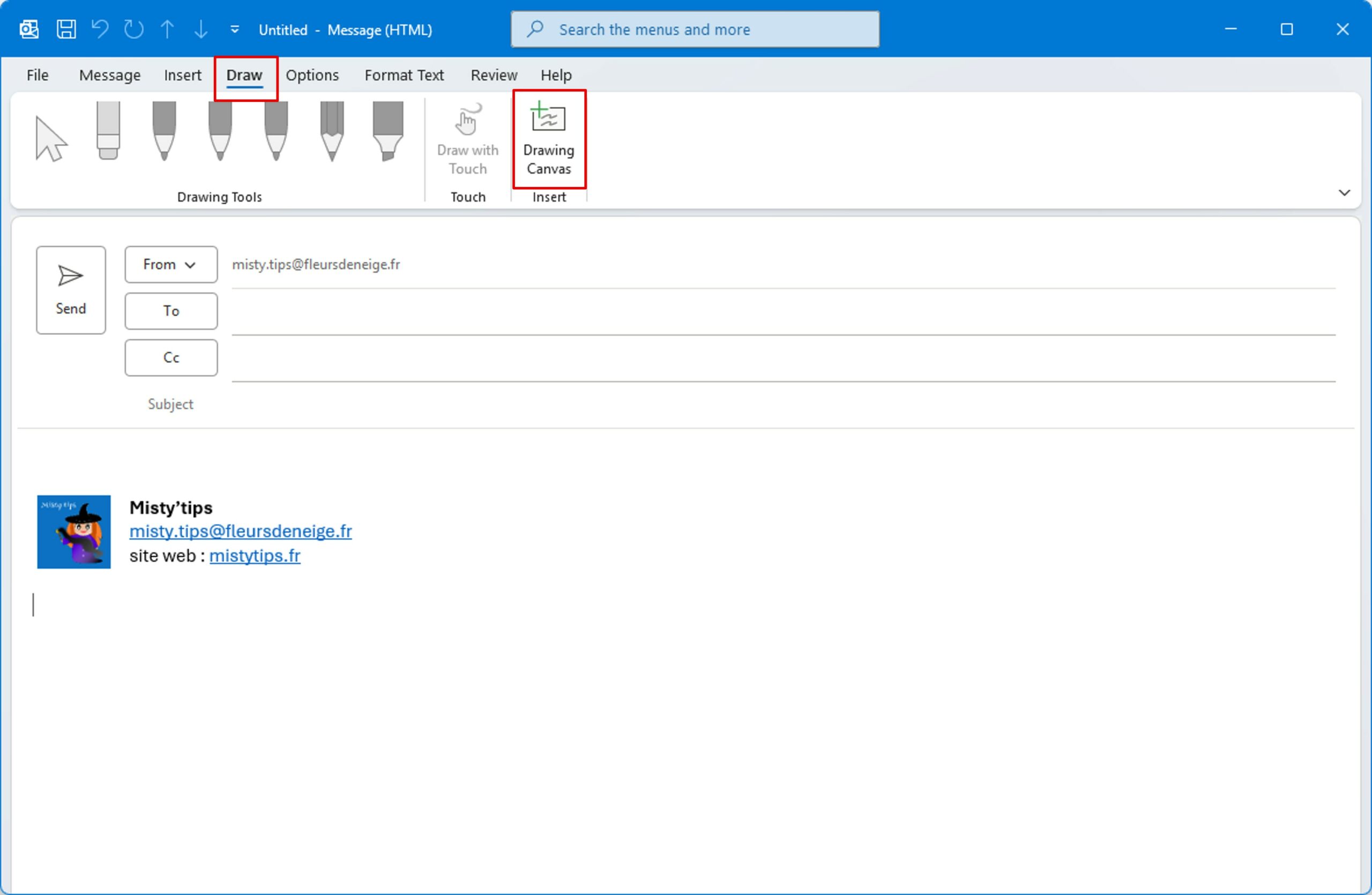
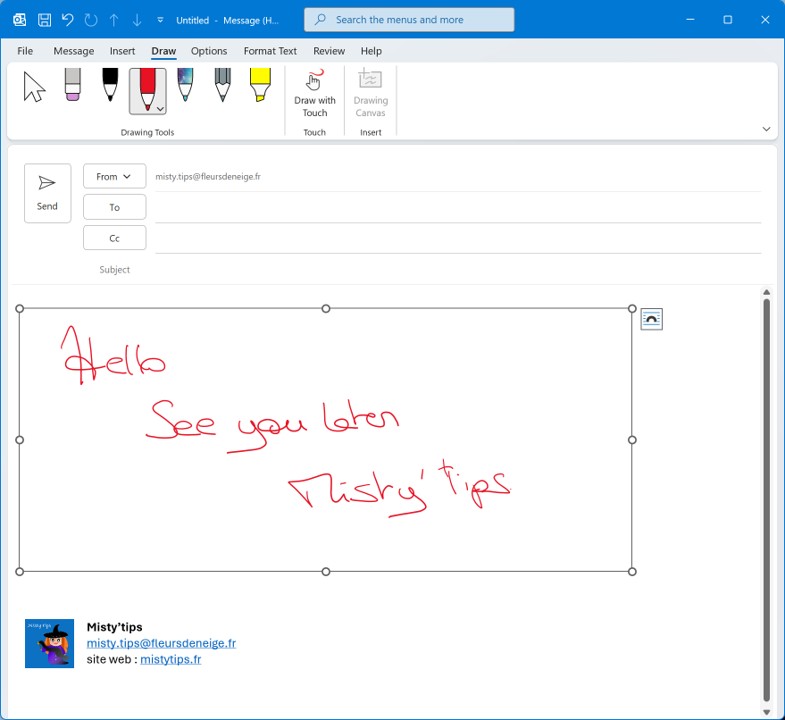
On Outlook, the Draw menu only allows you to add a Drawing Canvas in which you can add ink (drawing or text) within an email you are writing.
PowerPoint

Geometric shape recognition
First, draw a geometric shape (more or less 😉). Then click on it to select it. Click on the lightning bolt. Your drawing becomes a beautiful geometric shape.
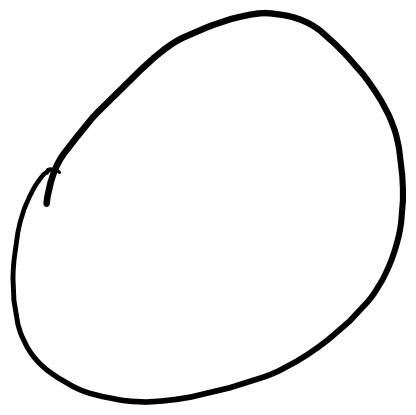
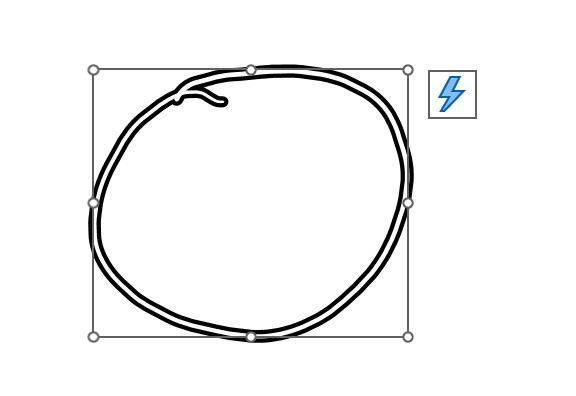
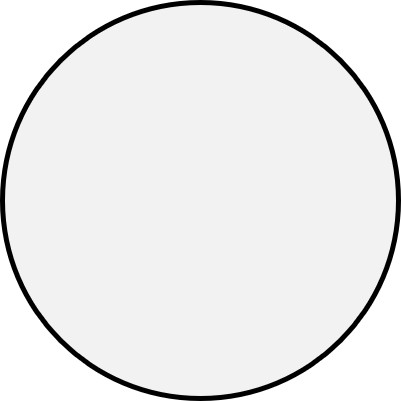
When you click on the transformed shape, 3 small dots appear. You can choose a different rendering geometric shape.
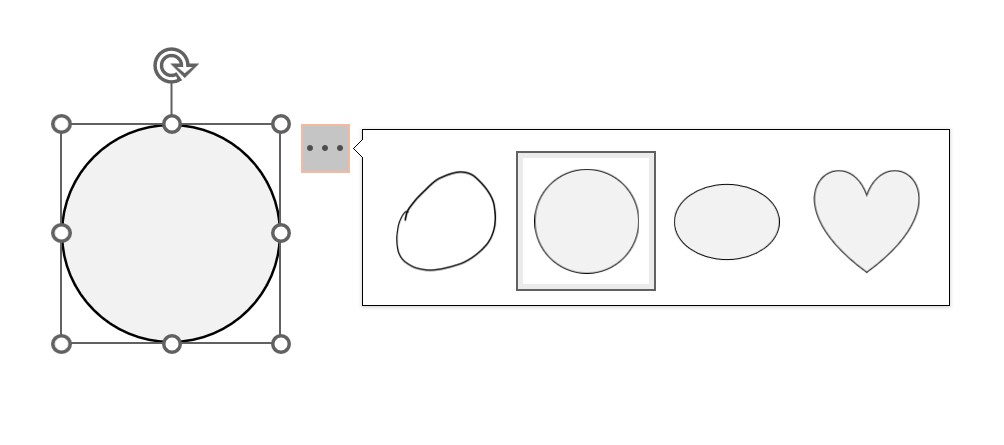
Another technique: click on the Lasso tool and circle your shape. Then click on Ink to Shape. This transforms your drawing into a geometric shape.

Text recognition
After writing a text, select the Lasso tool. Circle your text.

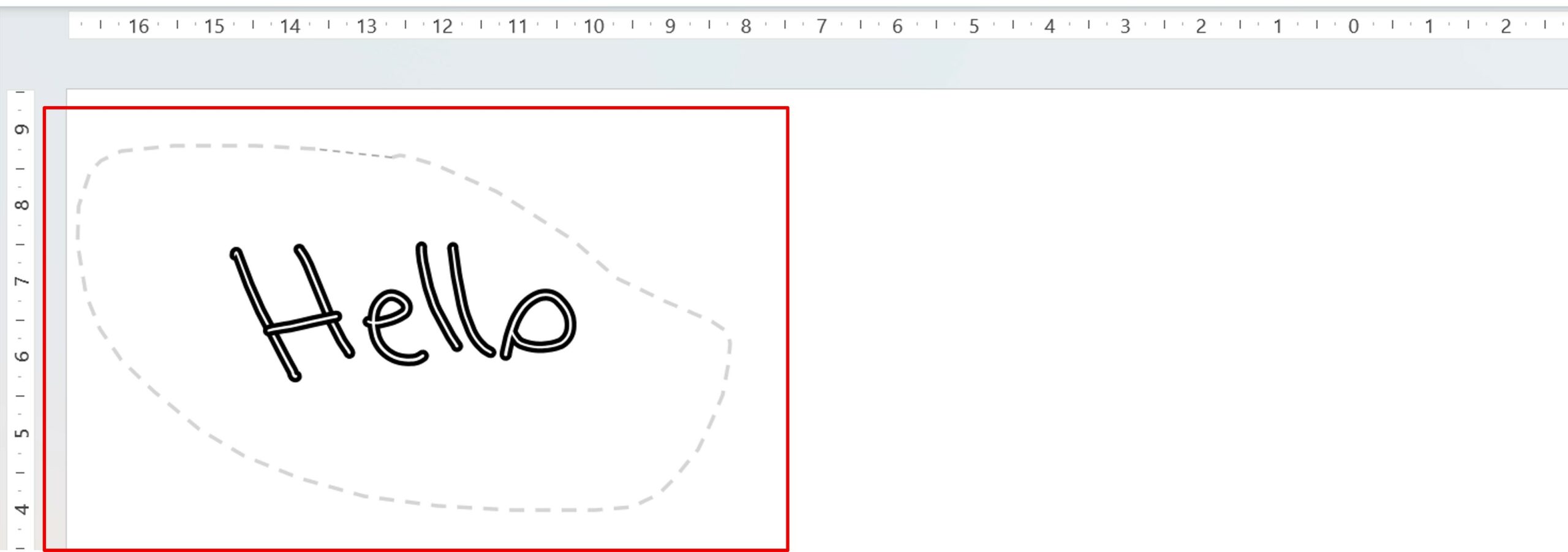
Click on the lightning bolt.
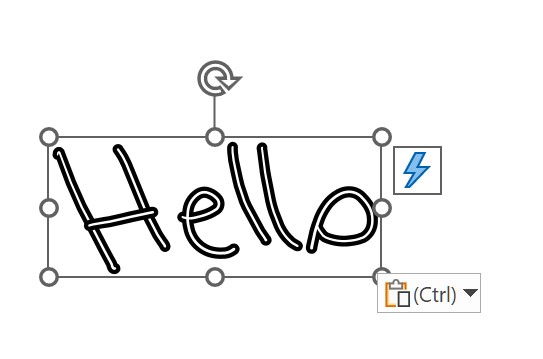
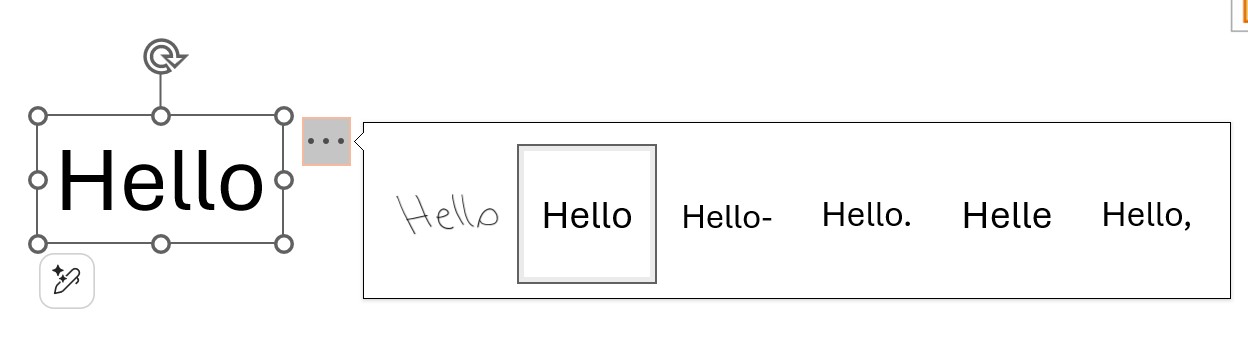
PowerPoint turns your inking into text. If you click on it, you can even choose other text options.
Word
Word also recognizes shapes and texts typed by hand. But there are small subtleties to note compared to PowerPoint.
Geometric shape recognition
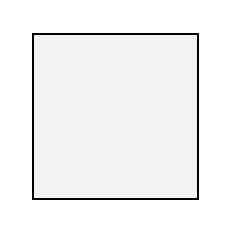
Indeed, in order for Word to recognize a geometric shape, you must first click on Ink in shape, in the Draw menu, so that Word transforms your input into a geometric shape.

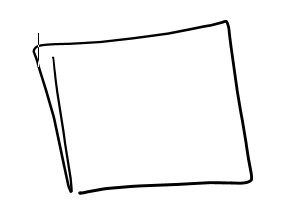
Becomes
Text recognition
For text recognition, Word works like PowerPoint.
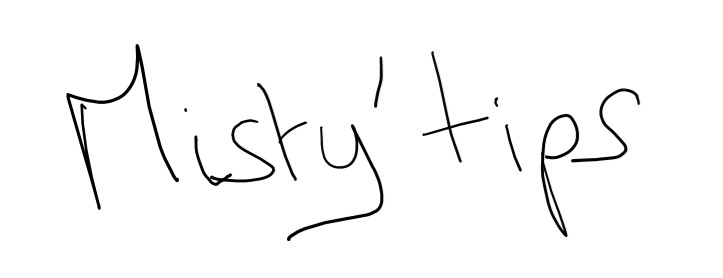
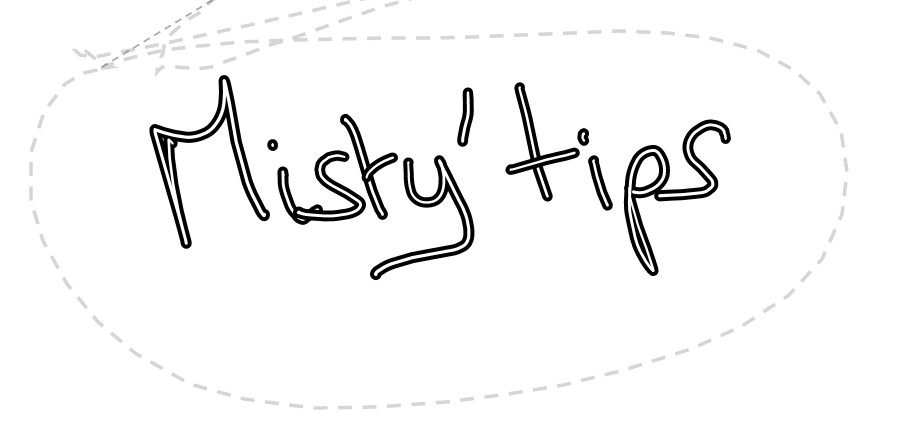
After writing a text, select the Lasso tool. Circle your text.

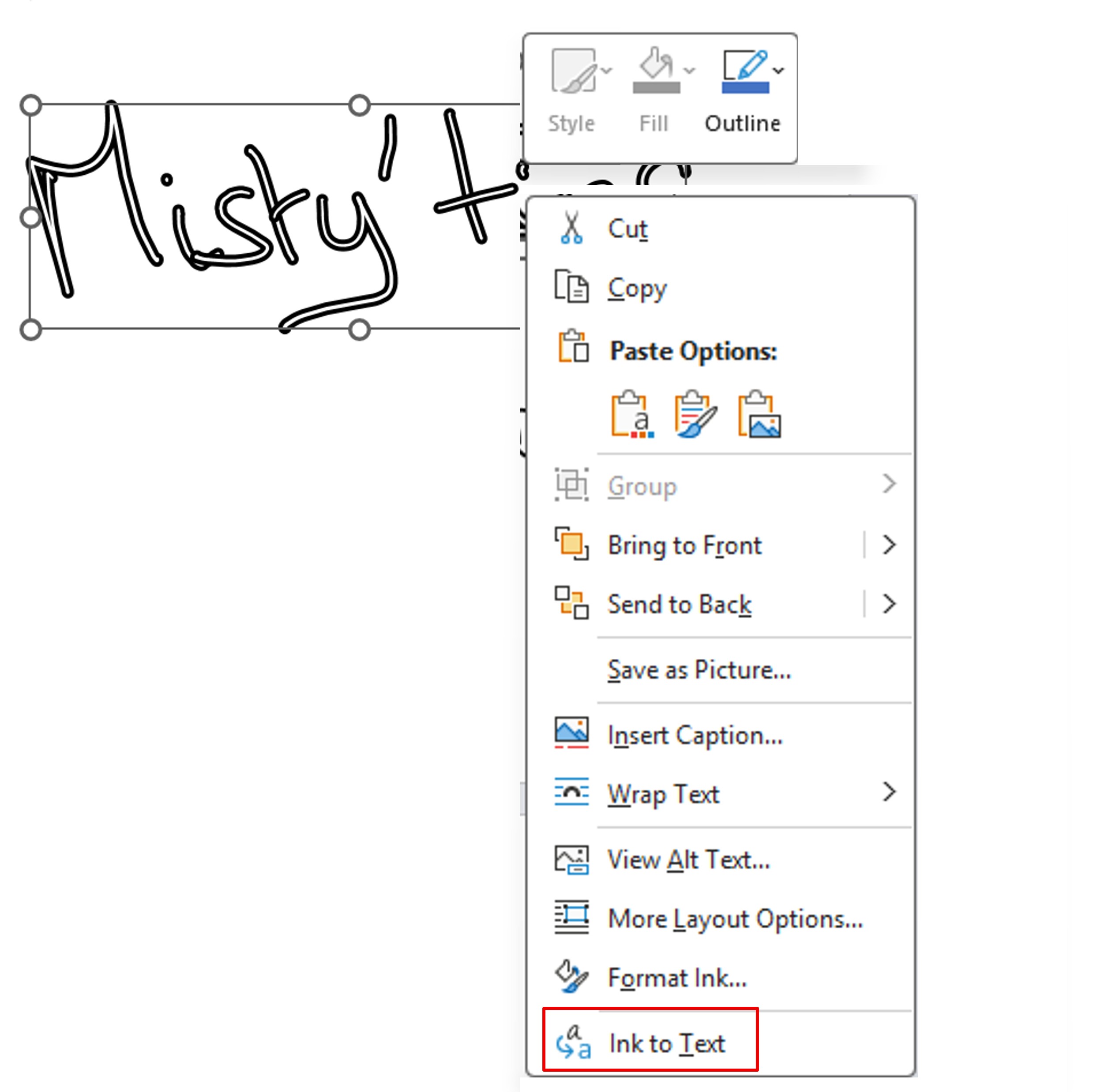
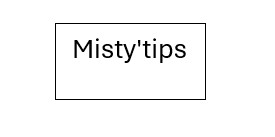
On the other hand, there is no direct recognition. You have to right–click and click on Ink to Text.
Finally, you get your text as if it had been typed.
OneNote
Drawing shapes
The Draw menu is much more extensive than that of other applications.

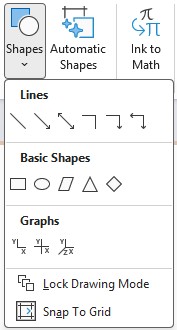
When you click Automatic Shapes, OneNote transforms your paths into geometric shapes right after you draw them.
The Shapes menu offers different shapes, lines, graphics. And even makes it possible to specify the alignment.
By selecting one of the options, when you draw, the shapes are done directly.
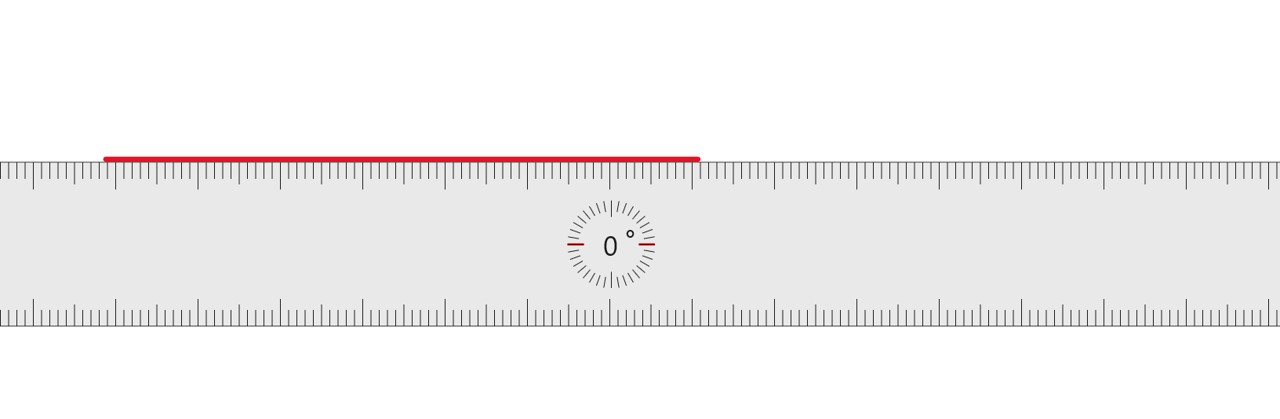
The ruler tool allows you to draw lines (just like on a real notebook!).

You can tilt and move your ruler to draw the lines you want.
Text recognition
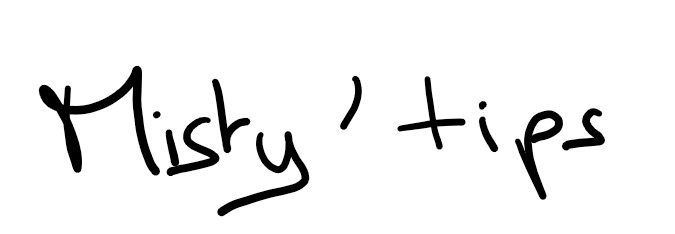
To do this, circle your input with the help of the lasso.
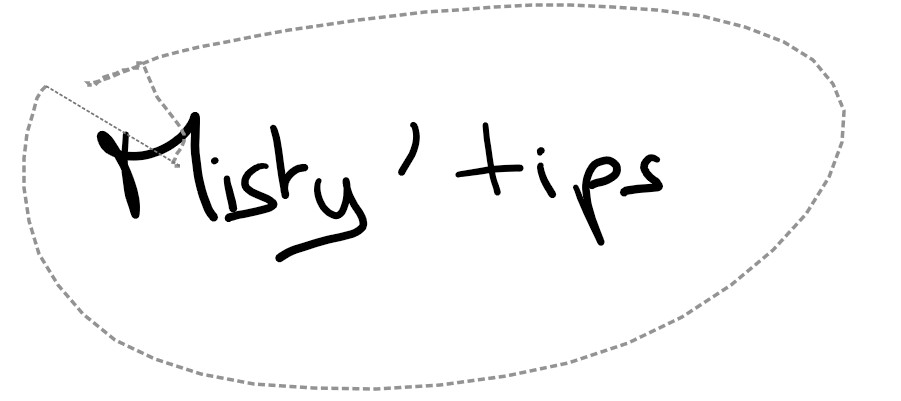
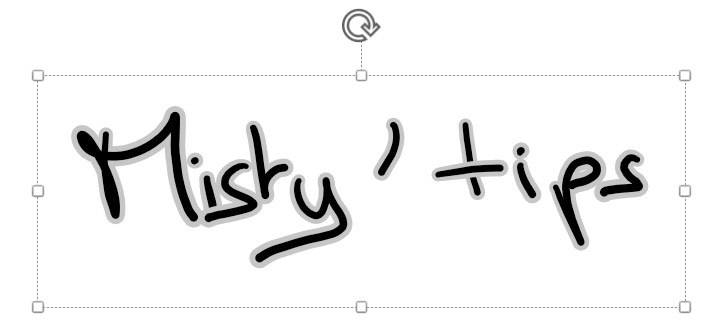
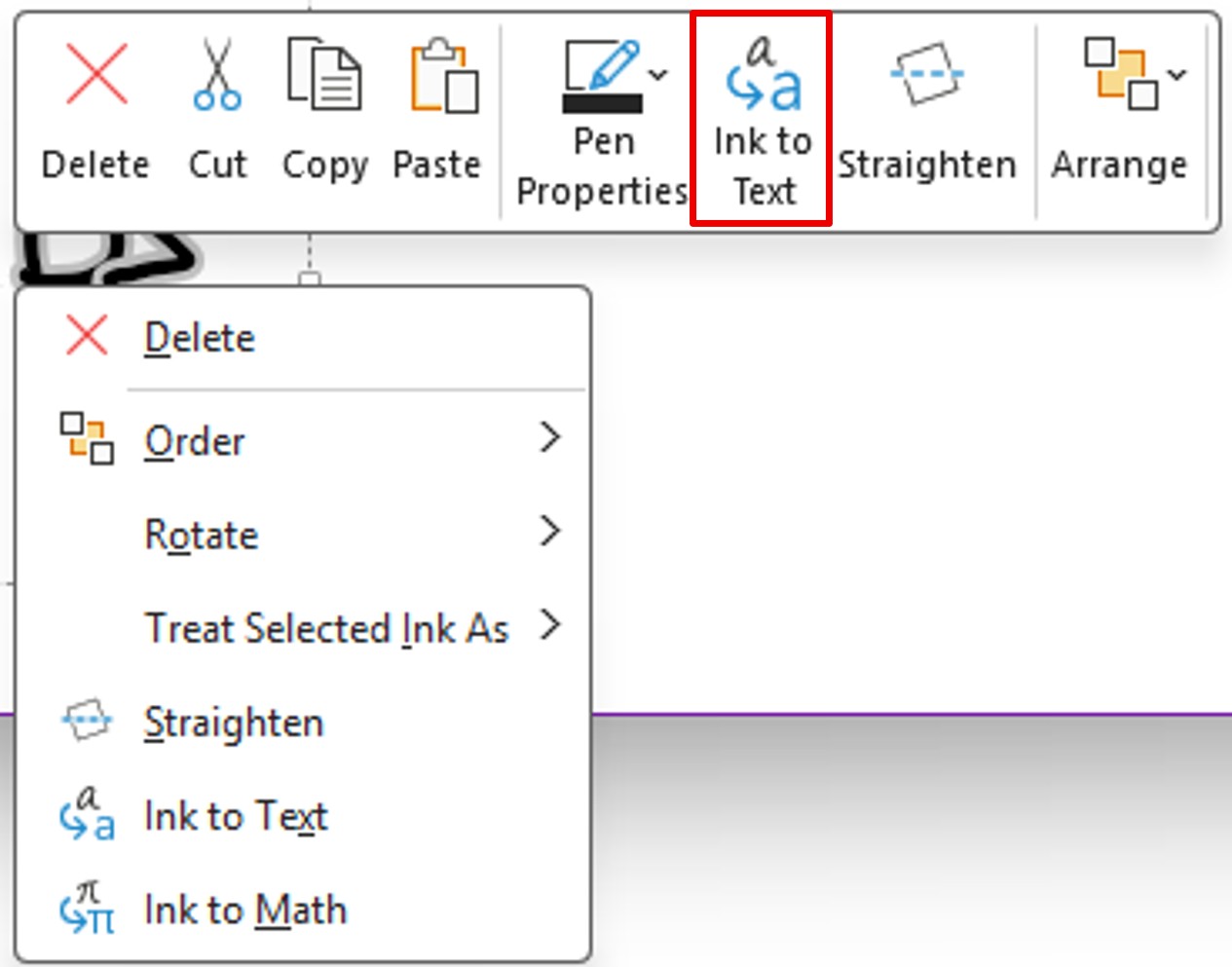
Once you have made the selection, click Ink to Text in the menu.
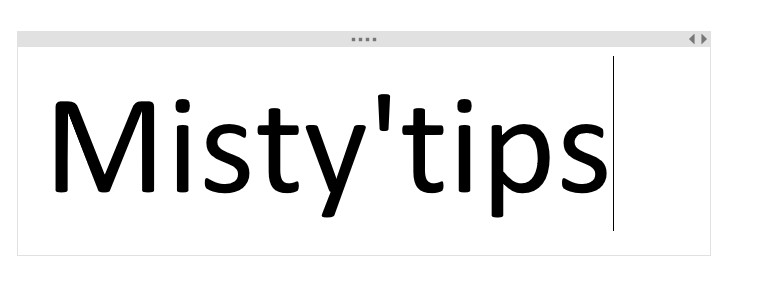
And there you have it, your inking turned into text.
💡Tip: When a drawing is selected with the lasso, you then have the option to edit, enlarge, shrink, shape, move, rotate, etc. Feel free to you.