

You juggle messages in English, Spanish, Portuguese, and sometimes even in completely unknown languages. Teams can make life easier—if you enable the right option.
Working in an international environment often means balancing multiple languages—and the occasional misunderstanding. Fortunately, Teams can help make things simpler.
By default, Teams offers to translate incoming messages in a language different from your default setting. However, you can also choose to automatically translate all messages.
The good news is that this feature exists; the less good news is that it’s a little hidden. Here’s how to find it.
Teams Settings
In the Teams settings (3 dots in the top right next to the photo or initials), in the General section, scroll down the window to get to the Translation section.
3 parameters are offered to you:
- Choice of translation language: By default, the language of the application. But you can change it.
- Choice of translation processing: Teams translates on–demand, always or never
- Leave messages from a certain language.
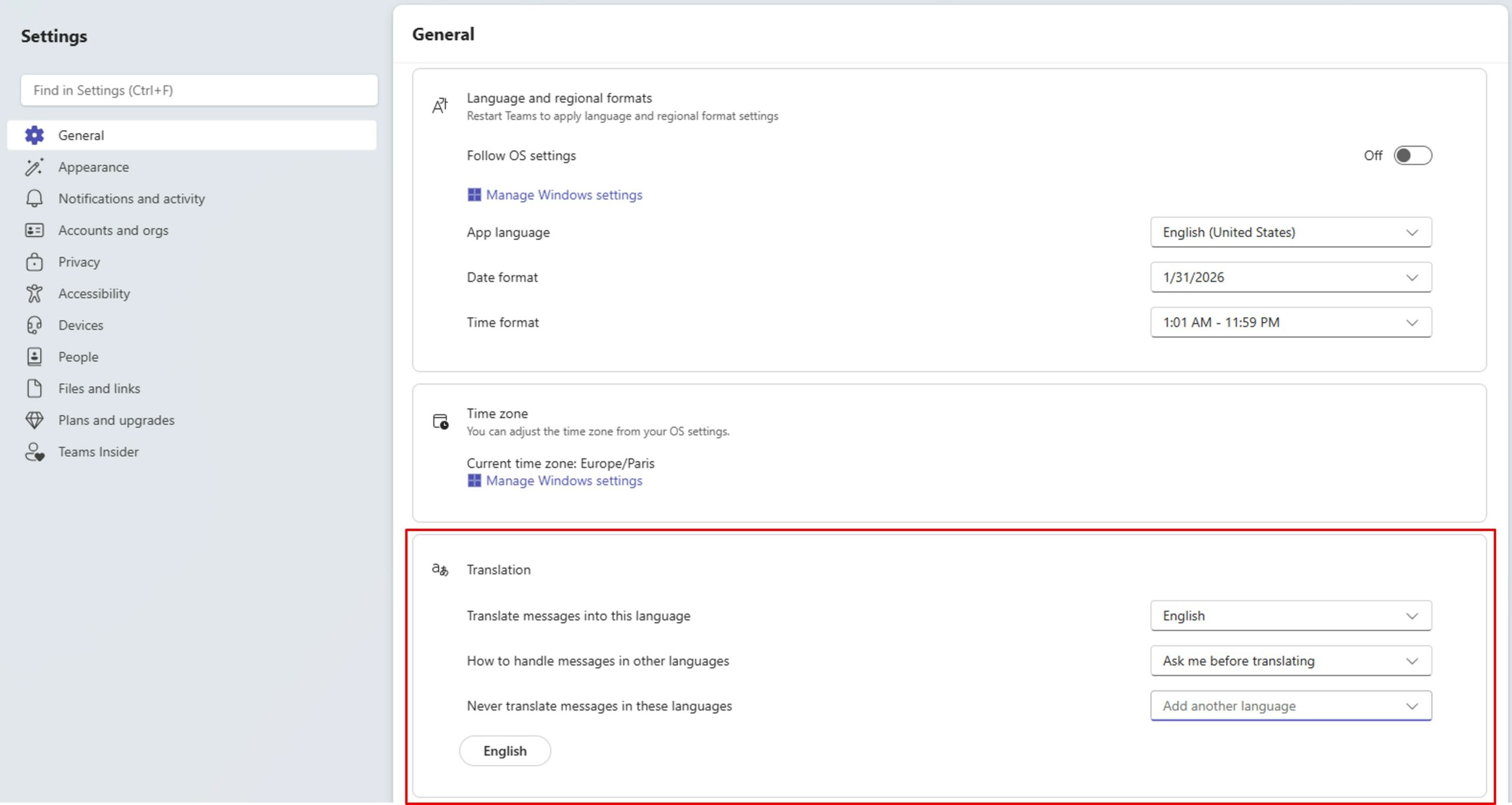
In the 2nd setting, open the drop–down list and click Auto-translate all messages.

This way, all messages received will be displayed in the language of your choice.
💡 Note: this option does not translate the messages you send, only the messages you receive.
If you don‘t speak the other person‘s language, tell them to set up their Teams in the same way 😉.
A simple feature, a big comfort. Turn it on and let Teams handle the translations for you.