

Do you need to enter data from a printed table?
Simply take a photo with Excel — no more manual typing.
When you have information on a physical document that you want to work with, you can now take a picture of it and import the data directly into Excel.
You have two options:
- Process the image on your computer
- Process the image on your smartphone
In this example, we’ll import the following table into Excel.
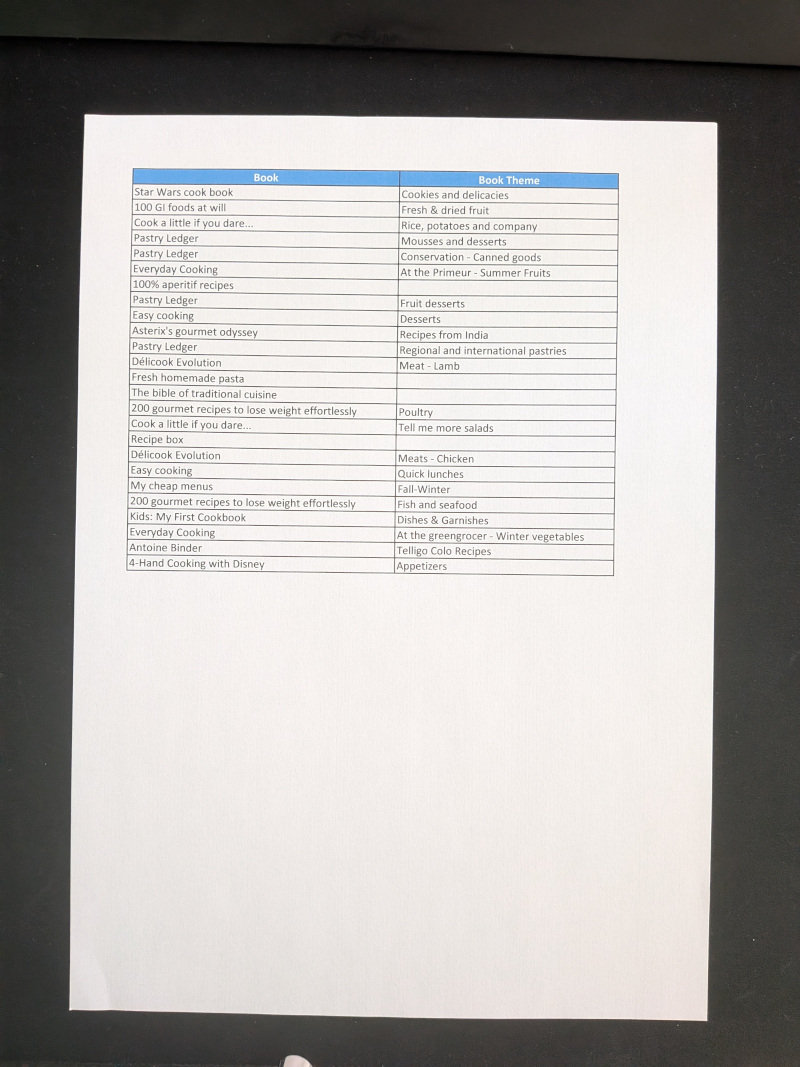
Importing a photo into Excel on your computer
First, make sure you have an image of your data saved on your computer.
If not, take a photo and save it.
Then, in the Data tab, under Get & Transform Data, click From Picture.
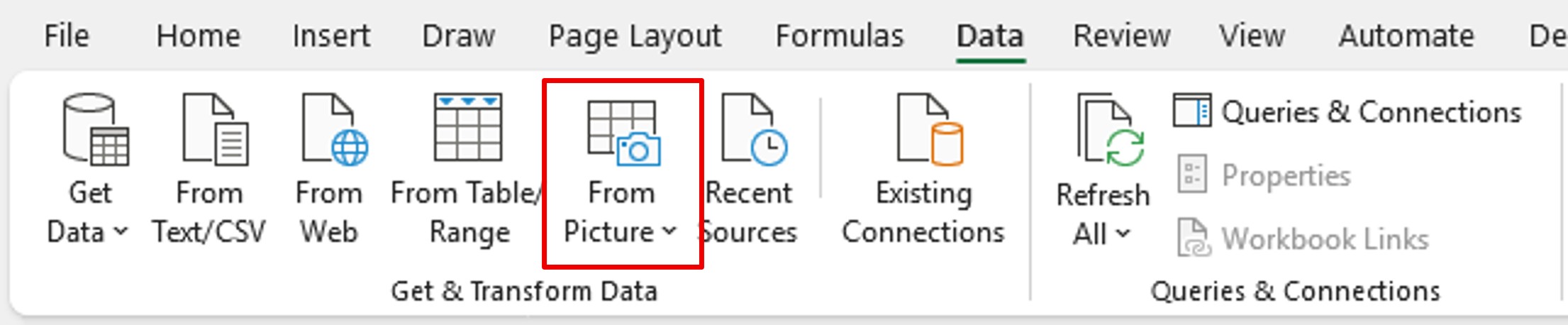
Select Picture from File.
If your image comes from the web or another source, you can also take a screenshot and choose Picture From Clipboard.

Excel will then analyze the image to extract the data.
As Excel recommends when taking a photo of a table:
-
make sure your document is well lit
-
frame the table closely to avoid unnecessary empty space
-
hold your device directly in front of the document to improve character recognition
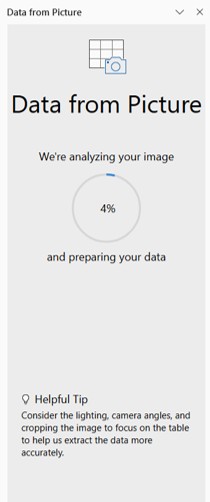
Once the analysis is complete, Excel highlights (in pink) the elements it could not confidently recognize.
You then have two options:
-
Insert the data as-is
-
Review the “uncertain” elements detected by Excel

Let’s review the uncertainties.
In our example, Excel found 13 items that may need correction.
You can go through them one by one.
In the image preview, the value to check is highlighted. You can edit the text in the pink box. When you’re satisfied, click Accept.
Repeat this for each item that needs revision.
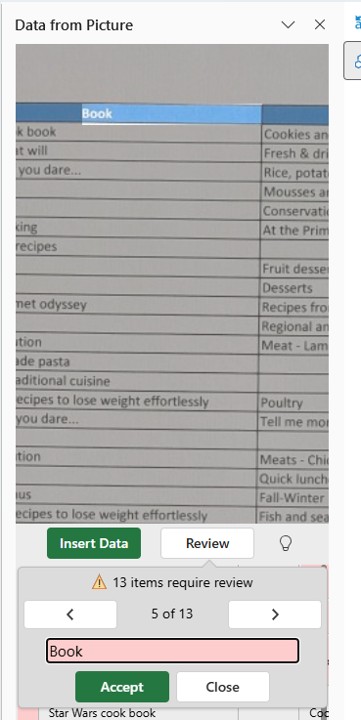
Once everything has been reviewed, click Insert Data.

Your data is now imported.
You may just need to do a bit of cleanup.
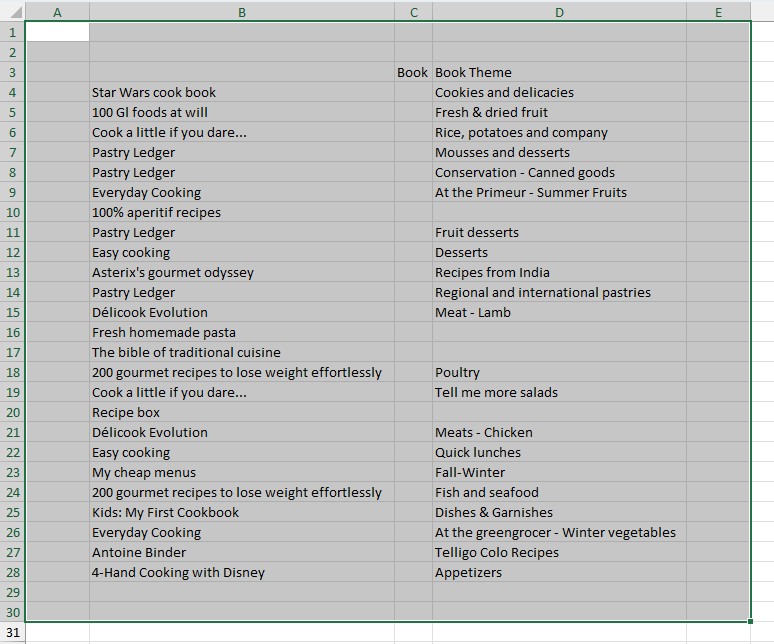
In our example, the empty rows and columns around the table correspond to the white margins in the photo.
If the picture had been cropped more tightly, there would be fewer empty cells.
Importing a photo into Excel on your smartphone
On a smartphone, you can take the photo directly from within Excel.
Open Excel on your phone.
Create a new workbook, then tap the icon in the bottom-left corner to access more tools.
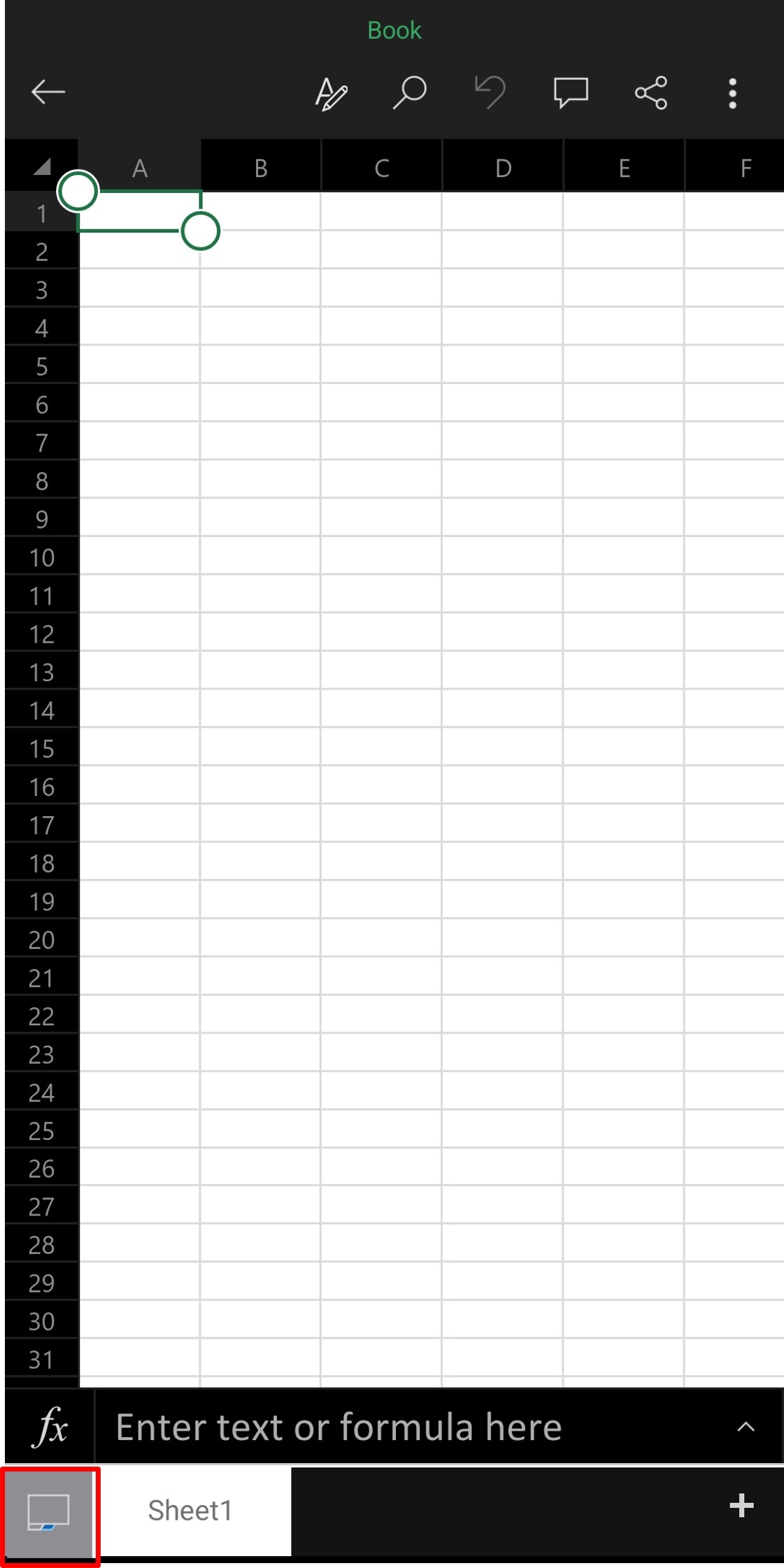
In the menu, tap the icon showing a table with a camera (Data From Picture).

This opens your camera.
Frame your document and take the photo.

If the image is already in your gallery, tap the gallery icon in the bottom-left corner and select it.
Feel free to crop the picture to remove unnecessary space.
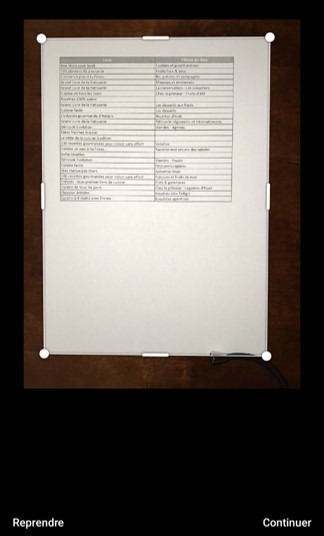
In my example, I could have cropped the white margins around the table.
After taking the photo, Excel analyzes the data.
Tap Open.

Excel indicates that 13 items need review — meaning the recognition may not be fully accurate.
You have two options:
-
open the data in Excel anyway
-
review all items to correct potential errors
Let’s review everything to ensure clean data.

For each item, you can correct the text recognized by Excel.
If the suggestion is correct, tap the field, add a space, then go back — this makes the Validate button appear.

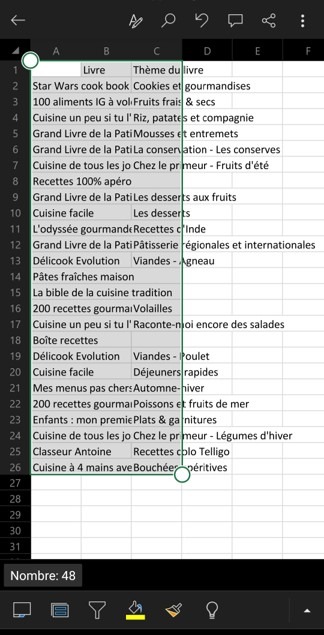
Here is the result: Excel has imported all the data from the table in the photo.
You can now work with it as you would with any other dataset.
On smartphones, you can take up to five photos in a row.
There is no such limit on a computer.