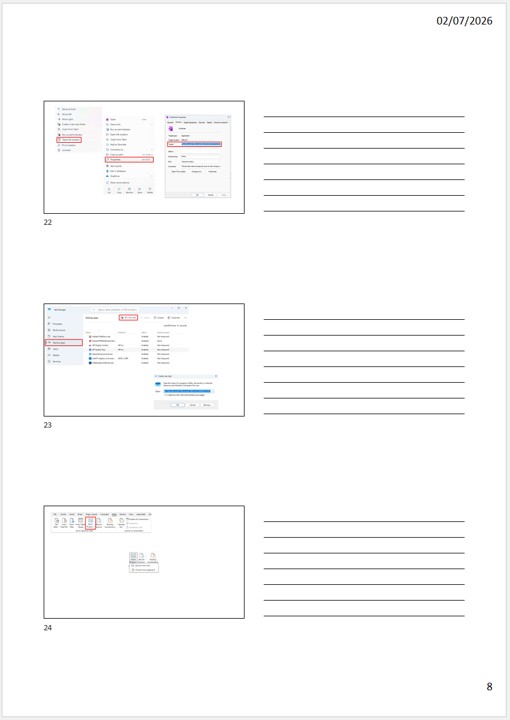

To be able to read a document on paper, while saving pages, it is possible to print several pages in 1 single page.
Similarly, in Word and Acrobat Reader, it is possible to print in booklet mode.
Finally, in PowerPoint, print your presentation in note–taking format.
Multi–page printing in 1
You can print multiple Steps in 1 in several applications, including Word, Edge, Acrobat Reader, and PowerPoint.
Usually this is configured in the print options.
Word
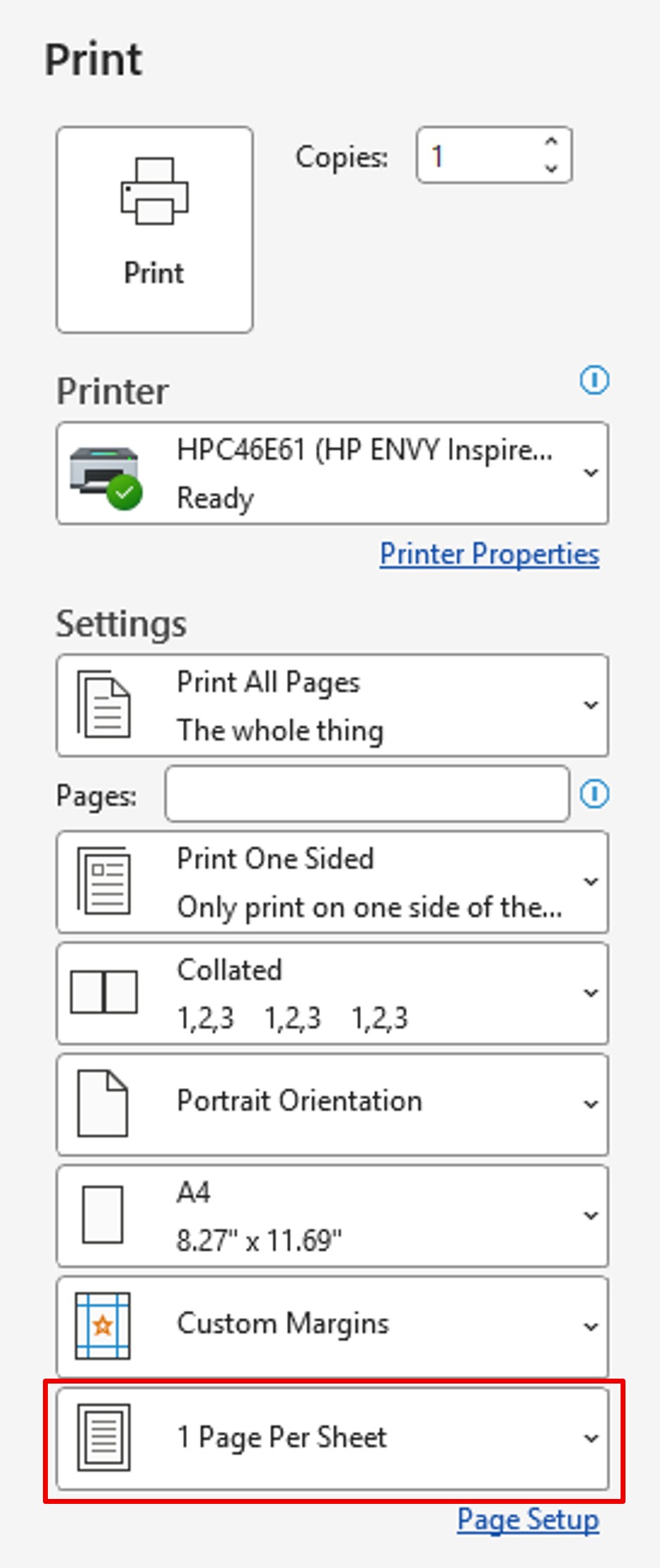
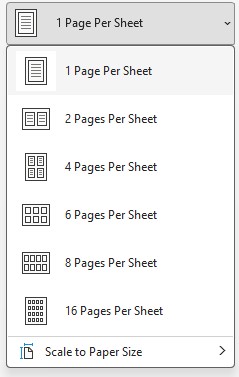
In the Word print options, click Print All Pages. You can then choose the number of pages per sheet.
Edge
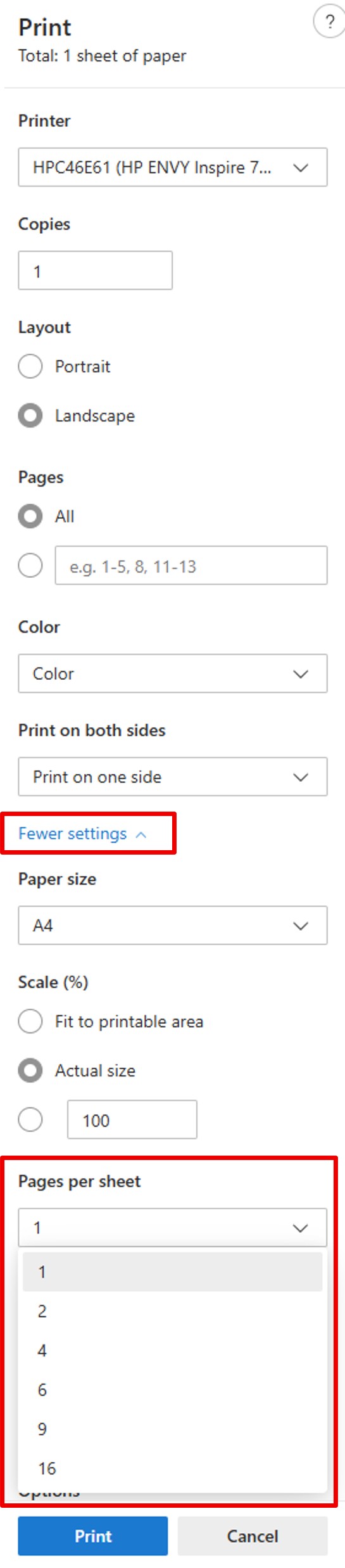
In the print options, click More settings. You will have access to the Pages per sheet option.
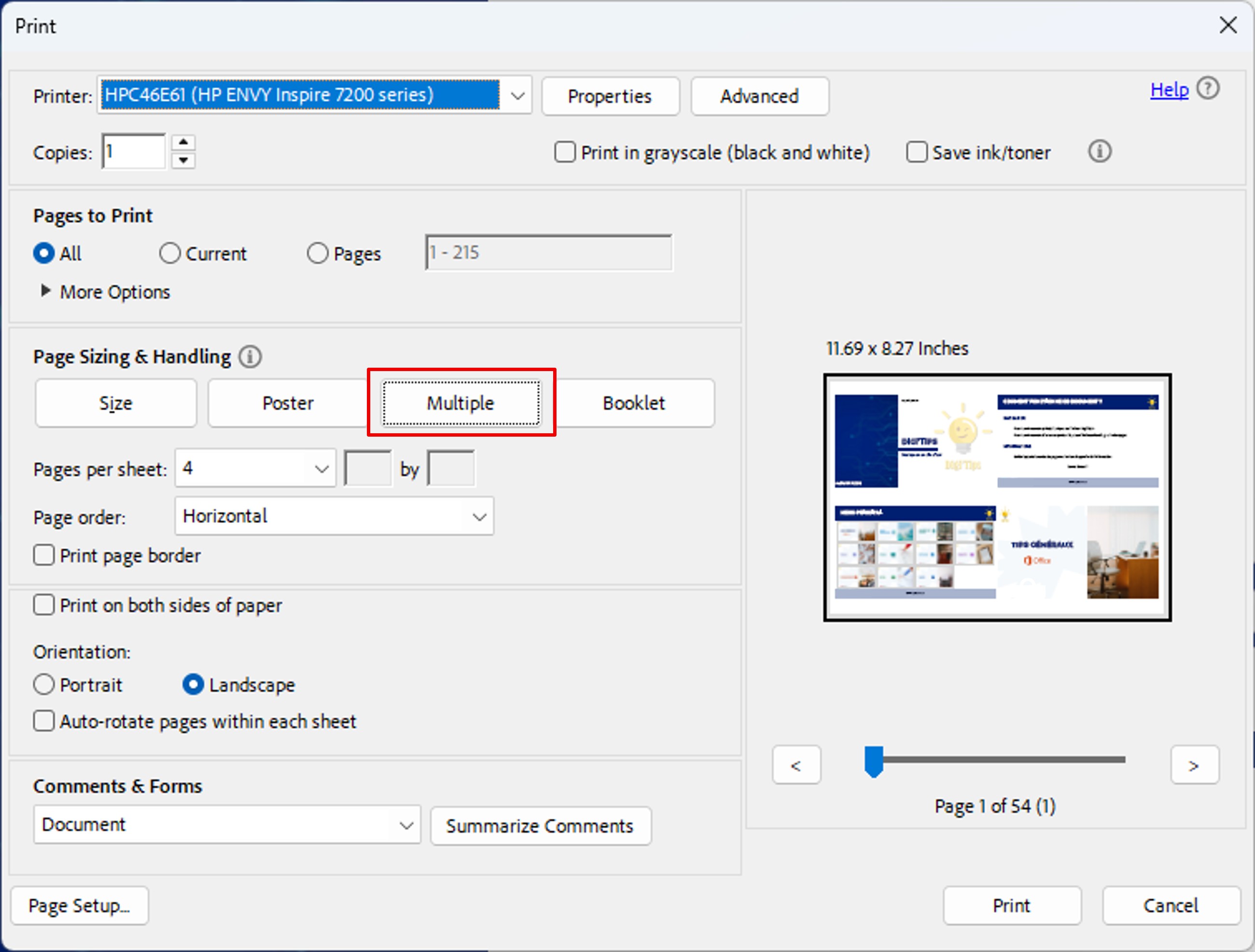
Acrobat Reader (for a PDF)
PowerPoint
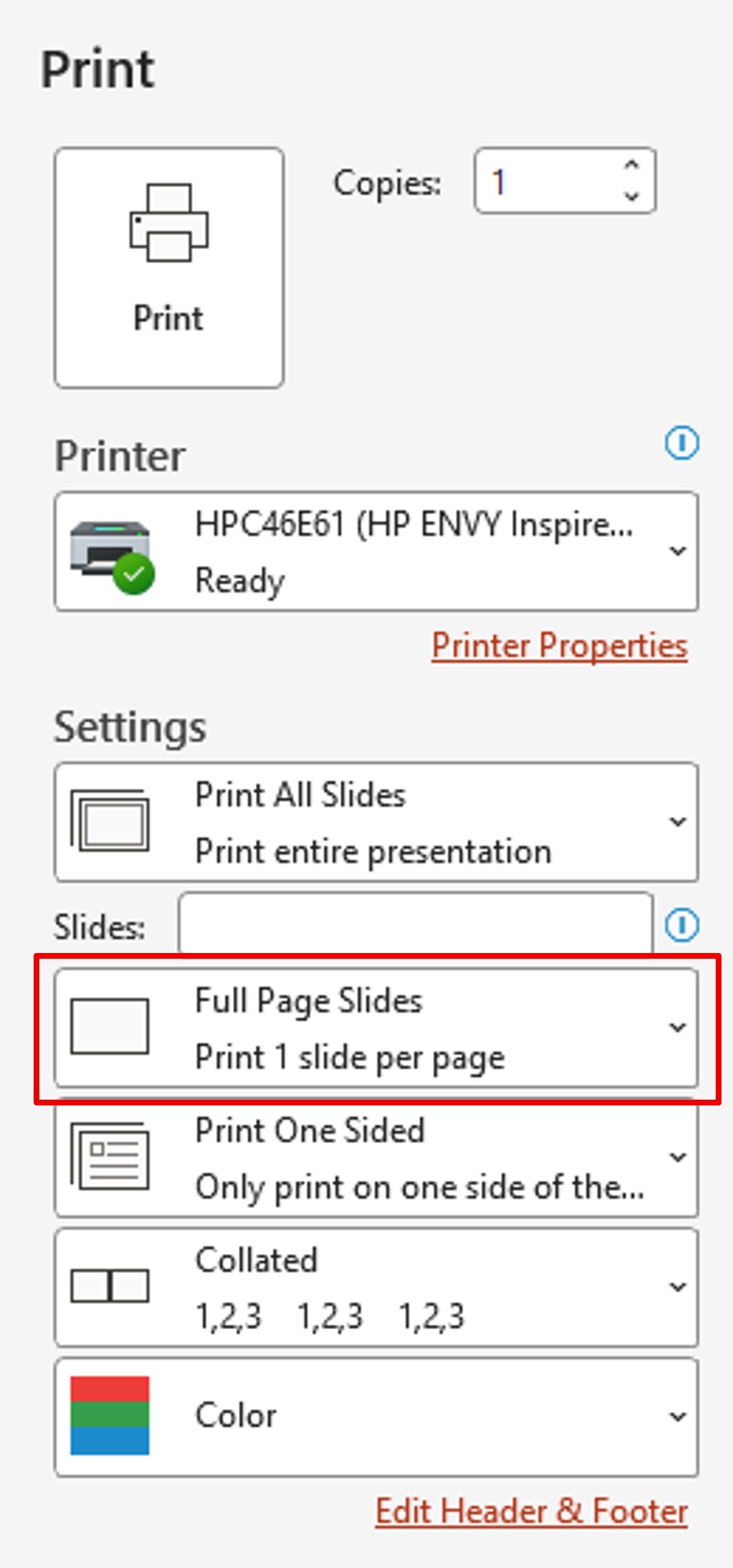
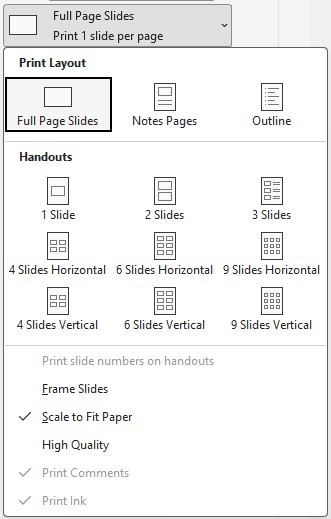
In the print options, click Print All Slides. You can then choose how many slides you want to print per page in the Full Page Slides option.
1st use case: Print in booklet mode
Booklet printing is available in Word and Acrobat Reader.
This printing mode allows you to print 2 pages per sheet but in a certain order. This allows you to group all the pages together and fold them in half. You will thus obtain a booklet with the pages that follow each other.
The front cover is printed on the same sheet as the back cover, and so on.
Word
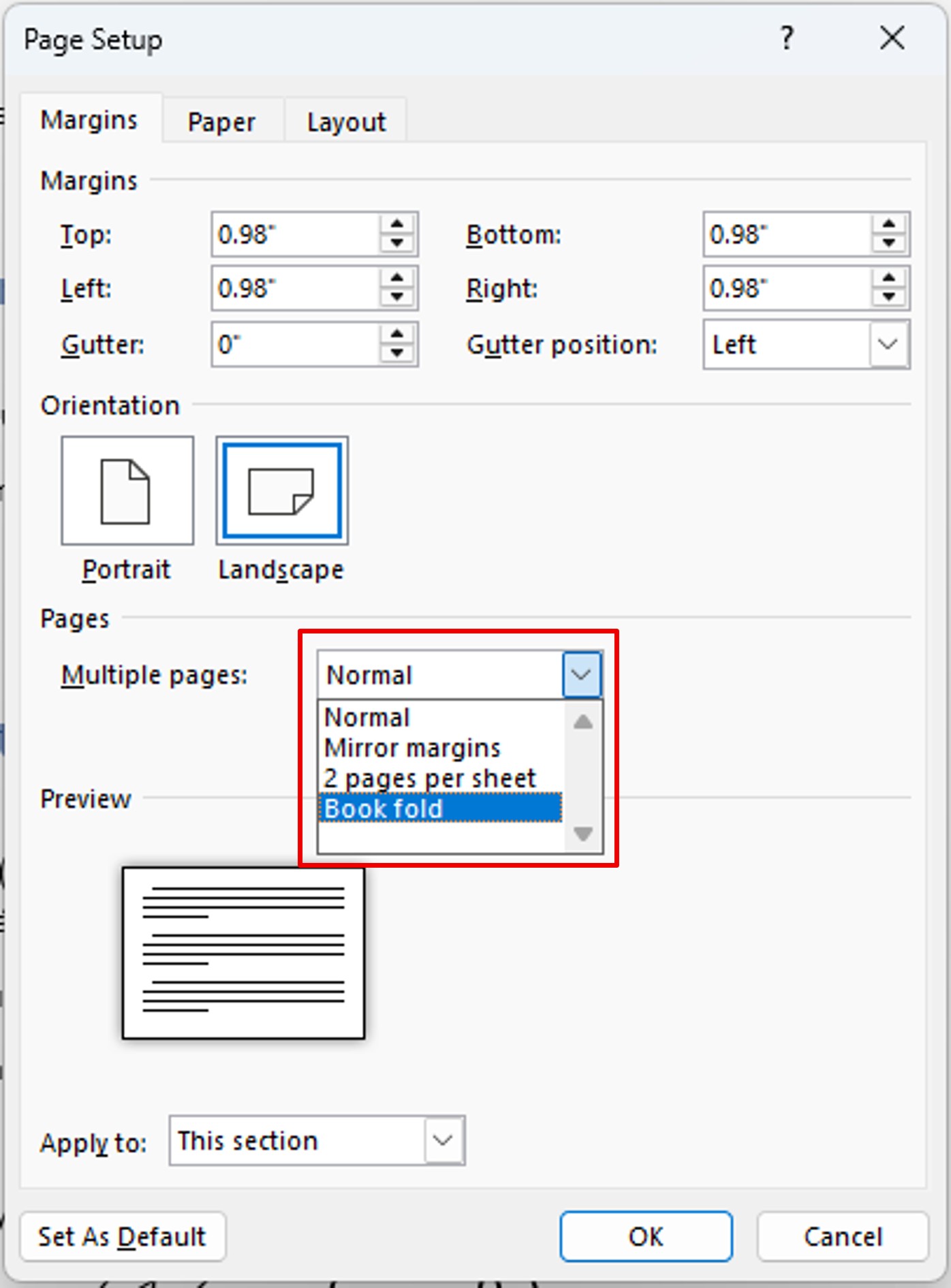
In the print options, click Page Setup.
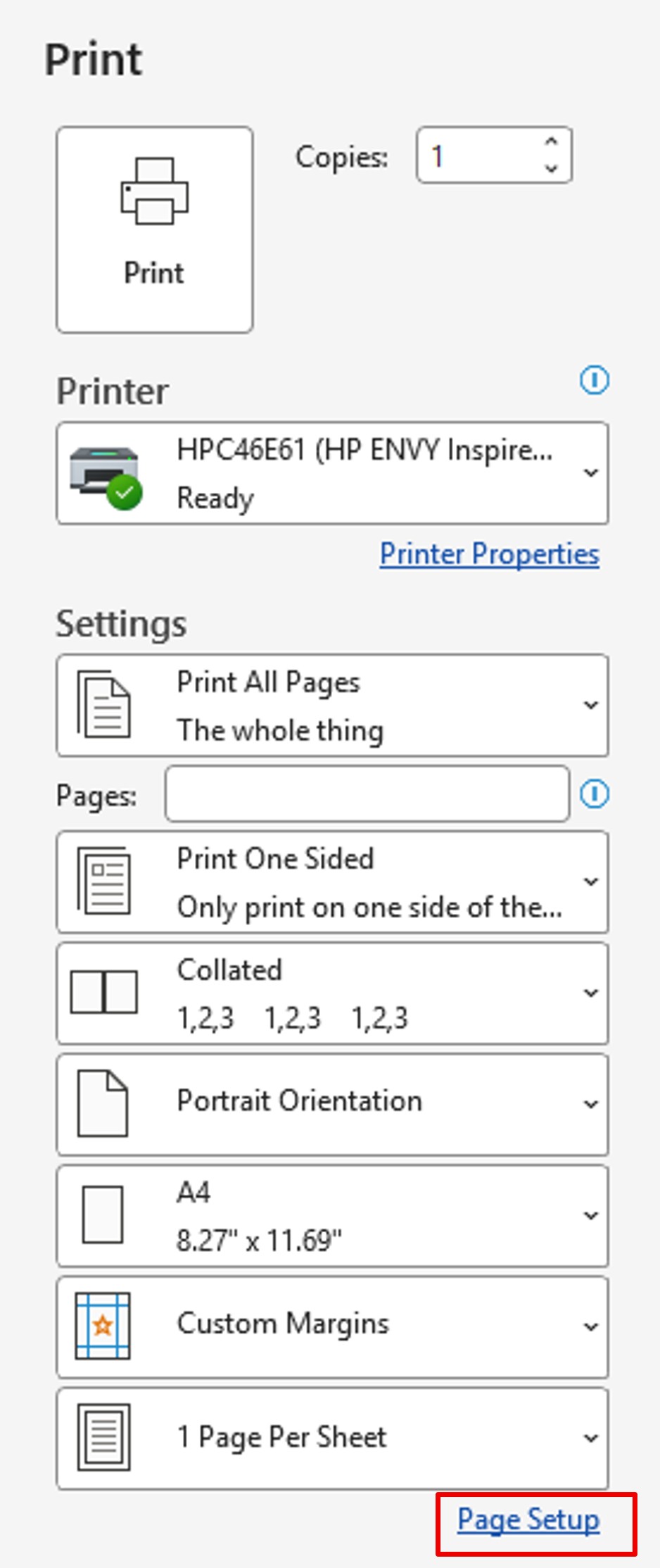
Dans la section Pages, ouvrez le menu d’Afficher plusieurs pages. Choisissez Disposition Livre.
In the Pages section, open the Multiple pages menu. Choose Book fold.
Acrobat Reader
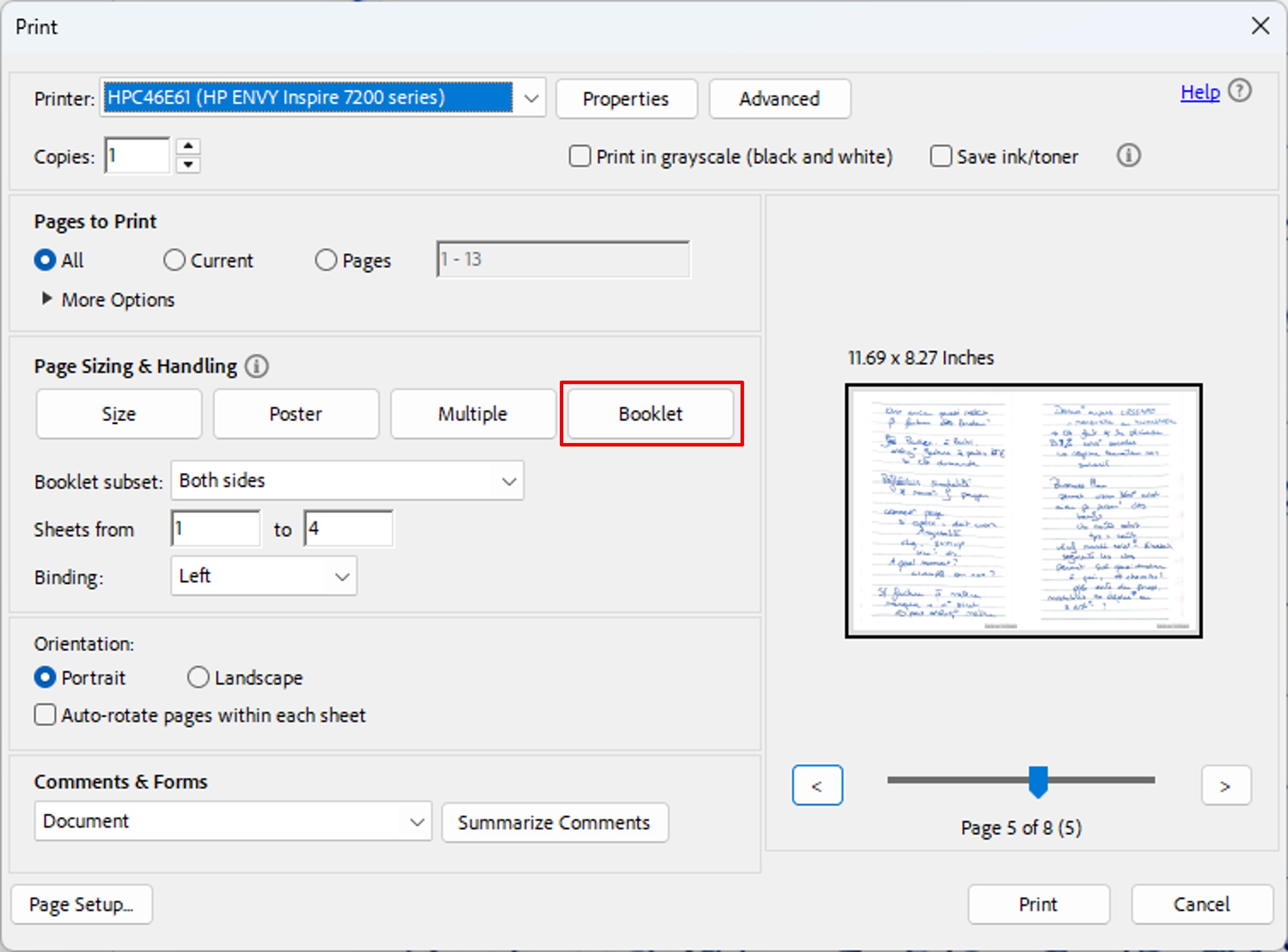
In the print options, in the Page Sizing and Handling section, click Booklet.
Use Case 2: Print Pages of Notes
You give a training course and want to distribute a support to the participants on which everyone can take notes.
Under PowerPoint, in the print options, click Full Page Slides. Choose 3 Slides.
You‘ll get pages that include your slides with notes boxes.