

Do you want to display your tables in $K while keeping the precision of the integers, to do precise operations?
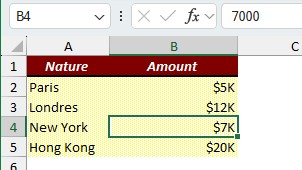
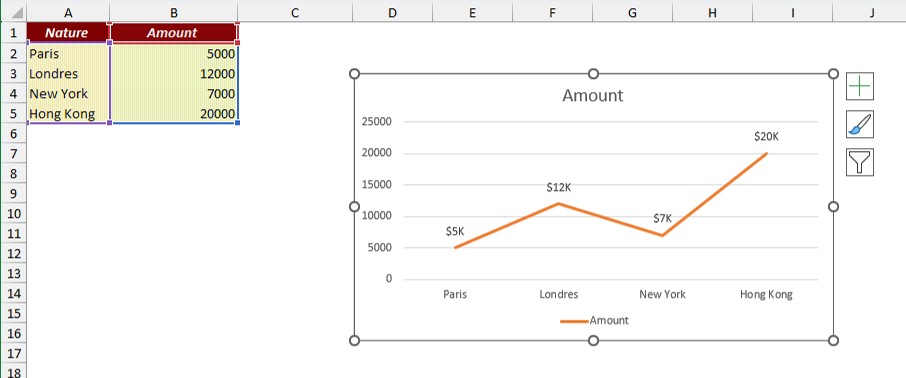
To display the amounts in the following table in $K, you can divide all the numbers by 1000. But if you have to use these numbers to make operations, you will lose precision.
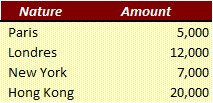
It is possible to display the amounts in $K while keeping the whole number and without making any transactions.
In the same principle as customizing the number format: Excel: Customize the number format
In a spreadsheet
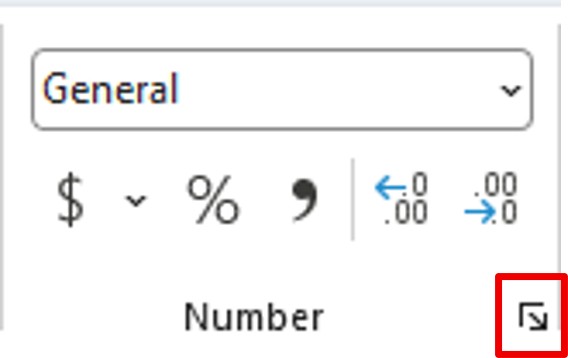
Select the numbers you want to see “transformed“. Then in the Home menu, in the Number section, click on the arrow at the bottom right.
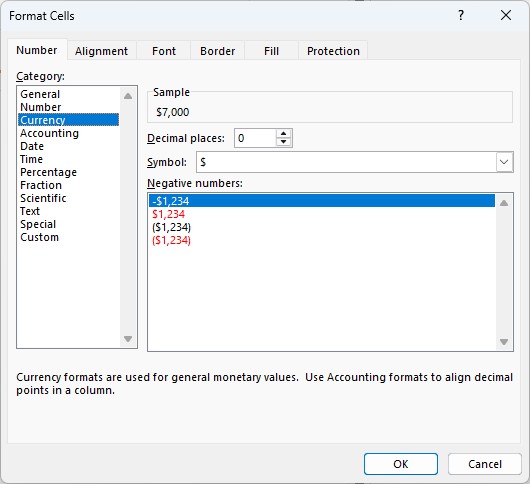
In the Format Cells window, Number tab, click on Currency. It will give you the code for the currency numbers.
Then click on the Custom category.
In the type field, change the format by adding a , (comma) behind the 0. Then add K.
You get the following code:
$#,##0,K
- 1 comma after the number format divides it by 1,000.
- 2 commas divide the number by 1,000,000, and so on.
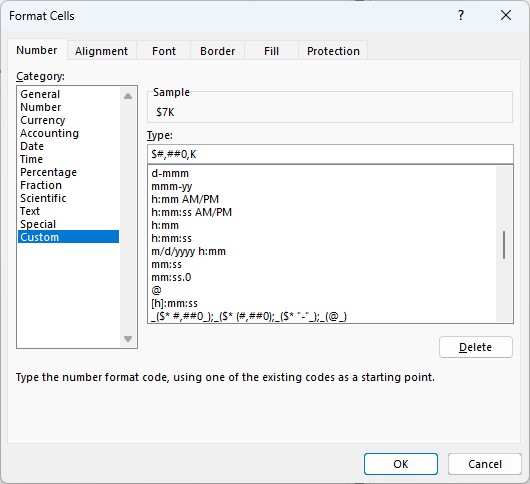
The display in the table is in $K but the number is always integer.
In a chart
To display data in $K in a chart, while your data is integer, right–click on the data labels (or the axis). Then, click Format Data Labels (or Axis).
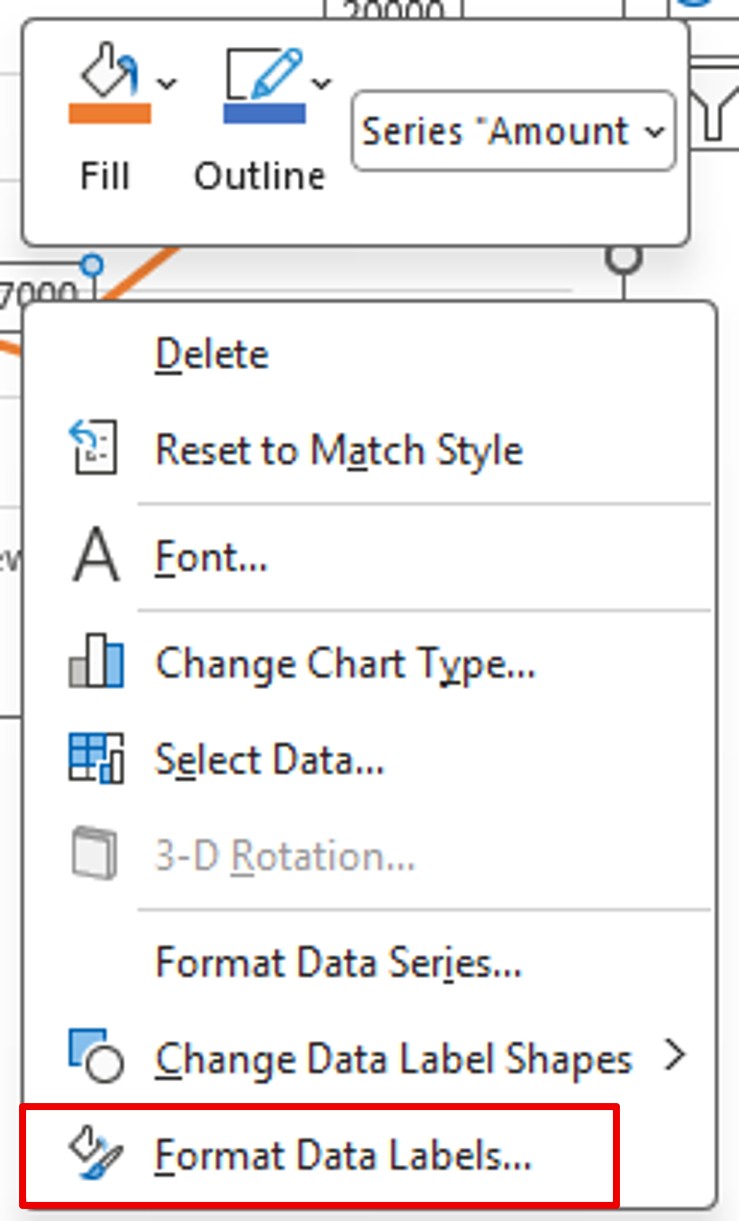
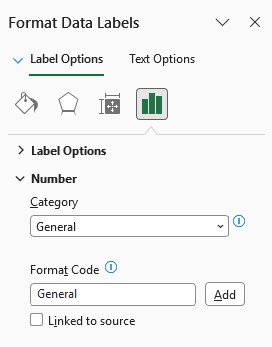
In the Format Data Labels options, open the Number section. Then uncheck Link to source.
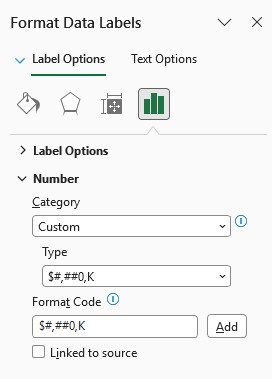
Then in the Category, choose Custom. Enter the format code $#,##0,K in the Format Code box. Finally, click Add.
Don‘t forget the comma after the 0 in the code, it will divide the number by 1000.
- 1 comma after the number format divides it by 1,000.
- 2 commas divide the number by 1,000,000, and so on.
The display of the labels is in $K while your data is integer.
Misty’tips is a passion project and completely free.
If my tips save you time, you can support the adventure with a small virtual coffee ☕
A question about Office or a tip idea to share? I’d love to hear from you!
Designed by Elegant Themes | Powered by WordPress