

What you do in one Word section doesn‘t always affect the others. Or sometimes it does. It all depends on a detail that many people don‘t know. And Word isn‘t the only one: Excel and PowerPoint also have their own subtleties.
Remove the header on the 1st page
In a report (or other), made in Word, the 1st page is often a cover page or a cover. The latter presents the main characteristics of the document. Thus, the header and the footer have no place there.
So to make sure that the cover page does not have a header or footer, position yourself on the 2nd page (or other) and add your header: Office: Change a document’s header and footer
In the Header & footer menu, check Different First Page. This way, the 1st page of your document will not contain a header or footer.
💡Tip: It‘s now possible to create a single header and footer for your landing page.
💡Tip 2: You can also customize the header and footer based on whether the page is even or odd by checking Different Odd & Even Pages.

You‘ll find the same options in Excel.

Different headers and footers depending on the sections
In Word, when you add sections to your document, you can make them independent of each other so you can better customize them: Word: Managing Sections
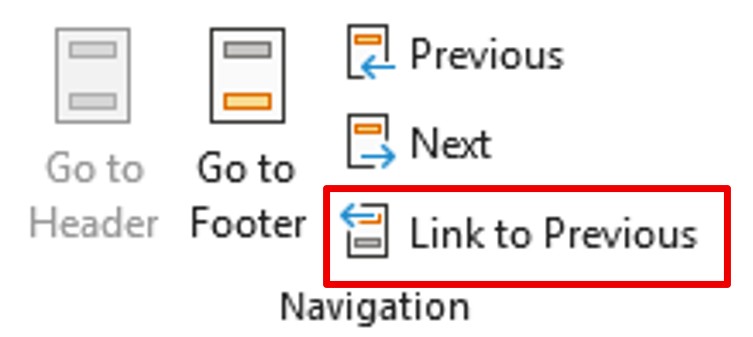
By default, the header and footer are the same on all pages. If you have added a section, it is possible to customize the header and footer of your section. On the Header & footer menu, click Link to Previous.
Different footers in PowerPoint
In PowerPoint, slides don‘t have a header. But it is possible to customize the footer of the slides, rely on the masks: PowerPoint: Use the slide master to keep your layout consistent
Depending on the mask used, your layout can be completely different.
You are now ready to personalize your documents according to their content.