

Looking to customize your document‘s header and footer? Word, PowerPoint… and even Excel offer simple but often underrated tools.
PowerPoint
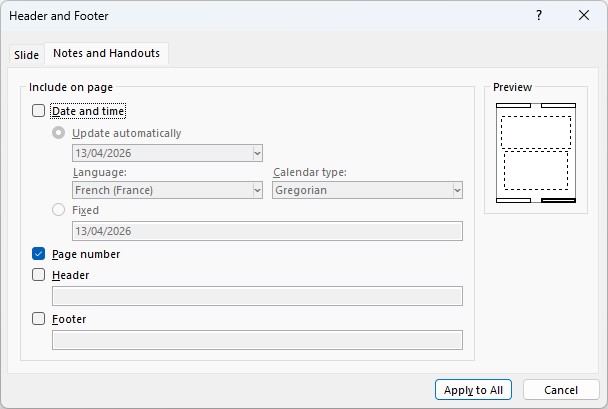
In PowerPoint, slides don‘t have a header, but you can customize the footer. However, in the Notes and Handouts views, the header becomes available.

On the slides, you can add:
- Date and time: dynamic (today‘s date) or fixed.
Tip: For a medium that serves as an audit trail, prefer the fixed date. - The slide number
- A footer text
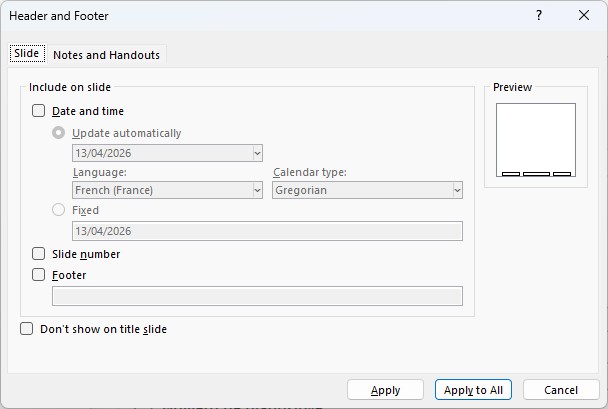
In the “Notes and Handouts“ tab, you can also add:
- Date and time
- Page number
- Text in the header
Word
As in all Office applications, access is via Insert> Header or Footer

Word allows you to add a page number on its own or embedded in a predefined formatting.
💡 Tip: To display “Page X on Y“, look for the corresponding option in Page Number. Word: Page number X of Y
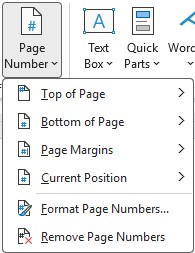
You can choose a preset style or click Edit Header / Edit Footer to customize freely.
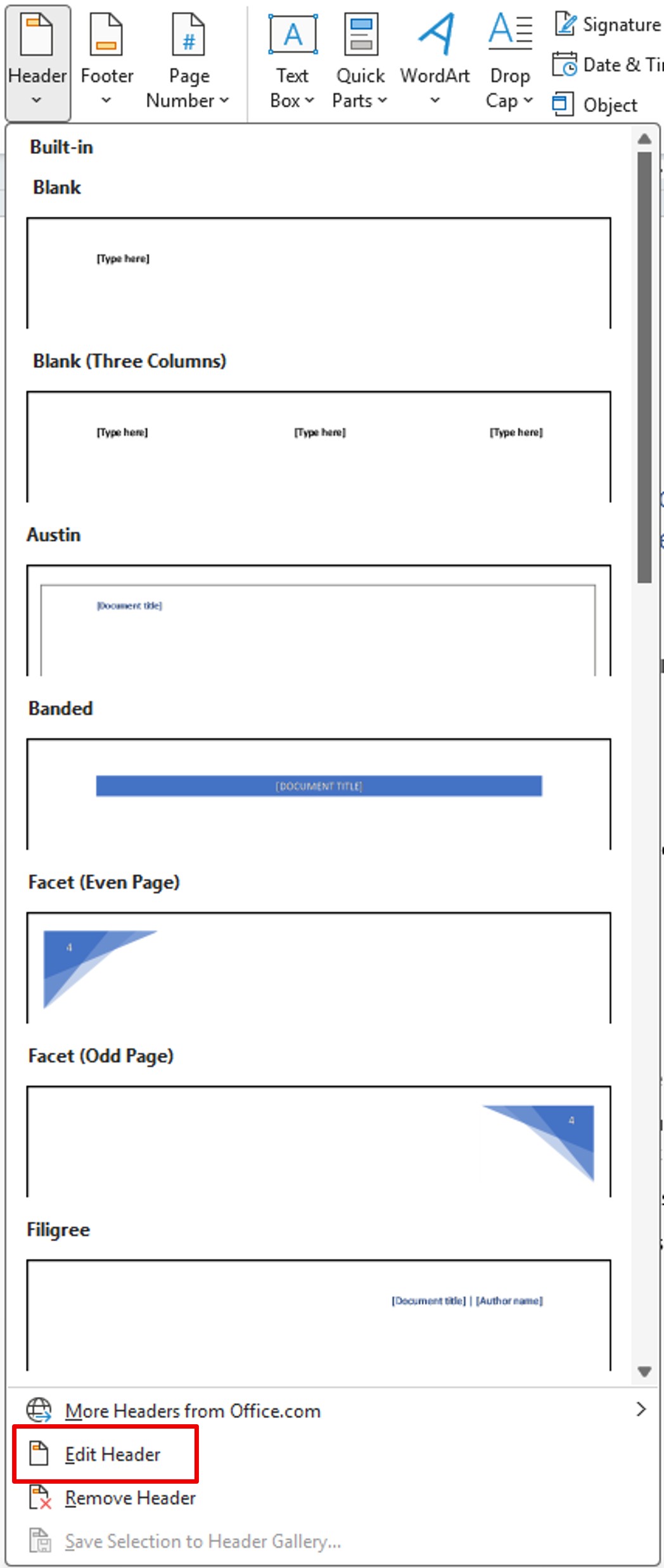
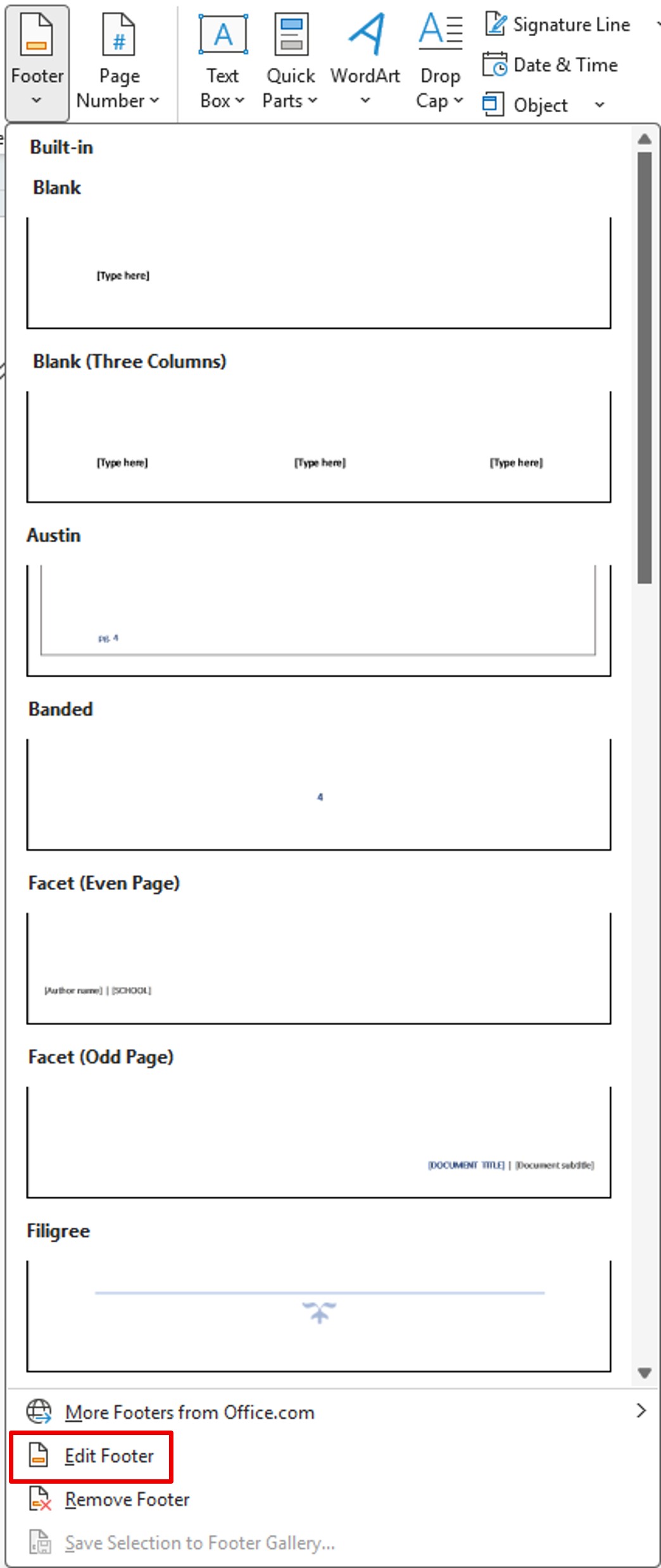
When you click Edit Header or Edit Footer, Word moves to the corresponding area. You can add the text of your choice and even an image (logo or other).


Once in the editing area, a specific menu appears. It allows you to add:
- date and time
- information about the document (file name, path, author, etc.)
- a QuickPart (signature, custom field, etc.)
- an image (logo, pictogram, etc.)
You can navigate in the other tabs (Home, Insert, etc.) to format your content.

To return to the normal view: Close the header and footer
Excel
Excel also allows you to customize the header and footer, but they are not visible in Normal mode. They appear:
- in Layout mode,
- to printing,
- or during export (PDF, etc.).
To access it: Insert> Header/Footer

You can add:
- Page number
- Number of Pages
- Current Date
- Current Time
- File Path
- File Name
- Sheet Name
- Picture

The header and footer are divided into three areas: left, center, and right.


Return to the normal view: Click in a cell, then click View > Normal.

You‘ve mastered the basics of header and footer in Word, PowerPoint, and Excel.
The next step? Learn to differentiate these areas by page or section, especially in Word — where things get really interesting